
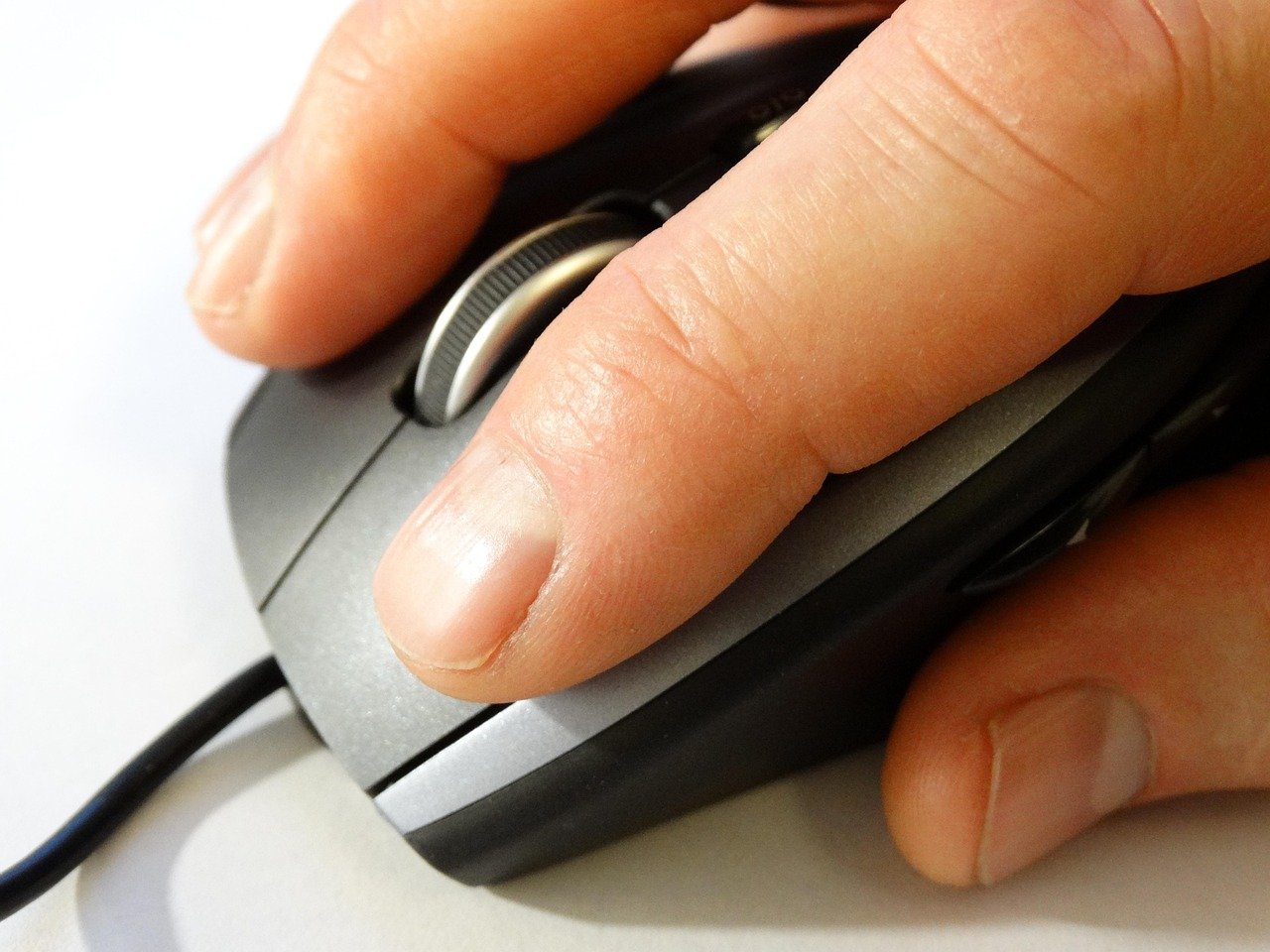

What does your hand feel like at 4 p.m. on a Tuesday? If the answer involves stiffness, a dull ache near the wrist, or a strange tingling in two fingers, your mouse may be quietly costing you comfort every single day. The best mouse for work isn’t the one with the flashiest sensor or the most glowing reviews. It’s the one that fits your hand, matches your tasks, and disappears into the background of your day. (Style mullet practical guide making cut work)
That last part is the tricky bit. Mouse shopping is loud. Marketing pages promise “esports-grade precision” to people who mostly click between spreadsheets. So this guide skips the spec-sheet theater and focuses on what changes your actual working life: shape, size, grip, buttons, connectivity, and the small habits that separate a good setup from a painful one.
Start With Your Hand, Not the Spec Sheet
Most buying guides start with sensors. That’s backwards. A sensor you’ll never max out matters far less than a shell that fits your palm.
Three things determine fit:
- Hand length and width. Measure from the base of your palm to the tip of your middle finger. Under about 17 cm is generally a small-to-medium hand; over 19 cm leans large. Mouse dimensions are usually listed, so compare them against your measurement rather than guessing.
- Grip style. Palm grip rests the whole hand on the mouse, which suits larger, taller shells. Claw grip arches the fingers with the palm partly touching, favoring medium shapes with a defined hump. Fingertip grip controls the mouse with fingertips alone, which rewards small, light designs.
- Handedness. Genuinely ambidextrous mice exist, but most ergonomic shapes are right-handed. Left-handed workers should look specifically for symmetric or left-handed models rather than settling for a right-handed “ergonomic” curve that fights their wrist.
A practical test: rest your hand on the desk as if holding a mouse. Notice whether your palm wants support or space. That instinct is more reliable than any reviewer’s ranking.
The Real Health Case for Choosing Carefully

Repetitive strain isn’t a fringe concern. Prolonged mouse use with a bent wrist, a pinched grip, or a mouse placed too far from the keyboard is a well-recognized contributor to discomfort in the hand, wrist, and forearm. The fix is rarely one magic product. It’s a combination: a shape that lets your wrist stay neutral, a position that keeps your elbow near 90 degrees, and breaks that interrupt static posture.
This is why “ergonomic” on a box means almost nothing by itself. A mouse can be sculpted and still be wrong for your hand size. The useful question is whether the shape lets your hand relax rather than hover or claw. If you’re already managing headaches or tension from desk work, it’s worth understanding how preventive habits and treatment fit together — the same logic of small, consistent adjustments applies to your desk setup. (Migraine medicine acute preventive treatments actually work)
Match the Mouse to the Job You Actually Do
Different work rewards different designs. Here’s a rough map:
| Work type | What matters most | What to deprioritize |
|---|---|---|
| Spreadsheets, writing, admin | Comfort, quiet clicks, scroll wheel quality, programmable shortcuts | Ultra-low weight, high polling rates |
| Design and CAD | Precision, a reliable middle button, smooth tracking, sometimes a scroll wheel that tilts | Aggressive RGB, tiny shells |
| Coding | Extra buttons for shortcuts, durable switches, comfortable long sessions | Flashy aesthetics |
| Calls and video-heavy days | Dedicated mute or push-to-talk buttons, wireless freedom | High-DPI specs |
| Hybrid desk and travel | Compact size, reliable wireless, long battery life | Large ergonomic shells |
Notice that almost nobody needs a 30,000 DPI sensor. Sensitivity beyond roughly 1,600 DPI is rarely useful for office work at normal screen resolutions, and most people never touch it after setup. Buy for the shape and the buttons, and treat sensor numbers as background noise. (Salary saving scheme payroll deduction savings actually work)
Wired or Wireless? The Honest Trade-Off
Wireless mice have closed most of the gap. Modern 2.4 GHz receivers and Bluetooth connections are stable enough for everyday work, and the cable-free desk is genuinely nicer.
The trade-offs worth knowing:
- Bluetooth saves a USB port and pairs across devices, but can occasionally lag or reconnect slowly after sleep.
- 2.4 GHz dongles tend to be more consistent and lower latency, at the cost of a port and a small thing to lose.
- Wired never needs charging and never drops, which matters if you’ve ever had a mouse die mid-presentation.
- Battery life varies enormously. Some models run a year or more on one AA battery; others need charging weekly. Check the real-world figure, not the marketing one.
A common mistake: buying a wireless mouse with a built-in battery and no way to use it while charging. If you go that route, confirm it works plugged in.
Buttons, Wheels, and Software That Doesn’t Annoy You
Programmable buttons are the most underrated productivity feature in office work. Two side buttons mapped to copy and paste, or to back and forward in a browser, can save hundreds of small hand movements a day.
But software quality matters as much as button count. Some manufacturer utilities are bloated, require accounts, or reset your settings after updates. Before buying, check whether the mouse stores profiles onboard — meaning your button mappings travel with the device and survive a switch to another computer. For anyone hot-desking or using a work laptop alongside a personal machine, onboard memory is worth more than three extra buttons.
Also consider the scroll wheel. A smooth, quiet wheel with a reliable middle click is a daily-use feature. Some wheels free-spin for fast document scrolling; others have detents for precise steps. Neither is universally better, but the difference is noticeable within an hour of use.
Ergonomics in Practice: Small Fixes That Beat Expensive Gear
A better mouse helps. A better setup helps more. Practical adjustments that consistently pay off:
- Bring the mouse closer. It should sit just outside your keyboard, not across the desk. Reaching widens the shoulder and strains the wrist.
- Keep the wrist neutral. A flat wrist, not an arched or dropped one. If your desk edge digs into your forearm, a wrist rest or a lower keyboard tray can help.
- Try a vertical mouse if pain persists. Vertical designs rotate the hand toward a handshake position, which some people find far more comfortable and others find clumsy for precise work. It’s a personal fit, not a universal upgrade.
- Learn keyboard shortcuts. Every action you move off the mouse is one less repetitive motion.
- Take micro-breaks. Thirty seconds of standing and stretching every half hour does more than most gadgets.
If you want a broader model for how to judge whether a tool or routine is genuinely helping, the same thinking behind explanatory versus predictive models applies: separate what you believe should work from what measurably reduces your discomfort over a few weeks.
Common Buying Mistakes Worth Avoiding
Even careful shoppers trip on the same few things:
- Buying for someone else’s hand. Reviews describe the reviewer’s hand, not yours. Treat them as shape descriptions, not verdicts.
- Chasing weight. Ultralight mice are built for fast flicking in games. For office work, a little weight often adds stability.
- Ignoring the return window. Fit is physical. Buy somewhere with a genuine return policy and use the mouse properly for a week before deciding.
- Skipping the left-hand check. Left-handed buyers frequently end up with a right-handed “ergonomic” mouse and wonder why it feels wrong.
- Overlooking the desk surface. A glossy desk or a worn mousepad causes tracking stutter that gets blamed on the mouse. A decent pad fixes it for a few dollars.
One more: don’t assume a bigger mouse is more ergonomic. Oversized shells force small hands to stretch, which is its own problem.
How to Test a Mouse Before You Commit
You can’t fully judge a mouse in thirty seconds at a store, but you can rule out obvious mismatches. Hold it. Does your palm rest naturally, or does your hand hover? Can you click without moving your whole arm? Does your ring finger and pinky have somewhere to go, or are they dragging on the desk?
Once it’s home, give it a real trial. Use it for a full workday of your actual tasks, not a five-minute cursor wiggle. Watch for:
- Wrist or forearm fatigue by mid-afternoon
- Accidental side-button presses during normal grip
- Scroll wheel steps that feel too coarse or too loose
- Connection drops or reconnection delays after sleep
- Software prompts or account requirements you didn’t expect
If two or three of those go wrong, return it. Fit problems rarely improve with familiarity.
Budget Realistically
You don’t need to spend a lot. A well-shaped basic mouse with two extra buttons and reliable wireless can cost very little and serve an office worker for years. Spending more typically buys build quality, quieter switches, better software, or a more refined shape — not dramatically better performance for spreadsheets.
The sensible approach: set a modest budget, prioritize shape and buttons, and only pay more for a specific feature you’ll actually use. A mouse is a tool you touch for hours daily, so value matters more than price tag in either direction.
Conclusion
The best mouse for work is the one your hand forgets about. Start with your hand size and grip, choose a shape that keeps your wrist neutral, add only the buttons you’ll genuinely use, and test the thing properly during a real workday. Skip the spec-sheet arms race. Your wrist doesn’t care about DPI. It cares about whether it can relax for eight hours — and that’s a decision you make with your hand, not a review score.
Frequently Asked Questions
Is an ergonomic mouse actually better for work?
It can be, but only if it fits your hand and grip. A sculpted mouse that’s too large or too small can be worse than a simple symmetric one. The benefit comes from a neutral wrist position and a relaxed grip, not from the label on the box.
How often should I replace a work mouse?
Replace it when it fails you: double-clicking on single presses, a scroll wheel that skips, worn feet that drag, or a battery that no longer holds charge. Many office mice last several years. There’s no fixed schedule, and comfort is a better trigger than age.
Are vertical mice worth it for office work?
For some people, yes. Vertical mice rotate the hand toward a handshake position, which many users with wrist discomfort find more comfortable. Others find them slower for precise clicking and dragging. Try one before committing, ideally with a return option.
Do I need a high-DPI mouse for work?
Almost never. Office work rarely benefits from sensitivity beyond a modest range, and most people settle on settings far below the maximum. Spend your attention on shape, buttons, and build quality instead of sensor numbers.
Can a mouse cause wrist pain?
Prolonged use with a bent wrist, a tight grip, or a mouse placed too far from the keyboard is a recognized contributor to hand and forearm discomfort. A better-fitting mouse helps, but so do position, keyboard shortcuts, and regular breaks.
What’s the best mouse setup for a left-handed worker?
Look for a genuinely symmetric mouse or a dedicated left-handed model. Avoid right-handed ergonomic curves, which force an awkward grip. Check that any side buttons are usable with your thumb on the correct side, and confirm the software allows remapping.