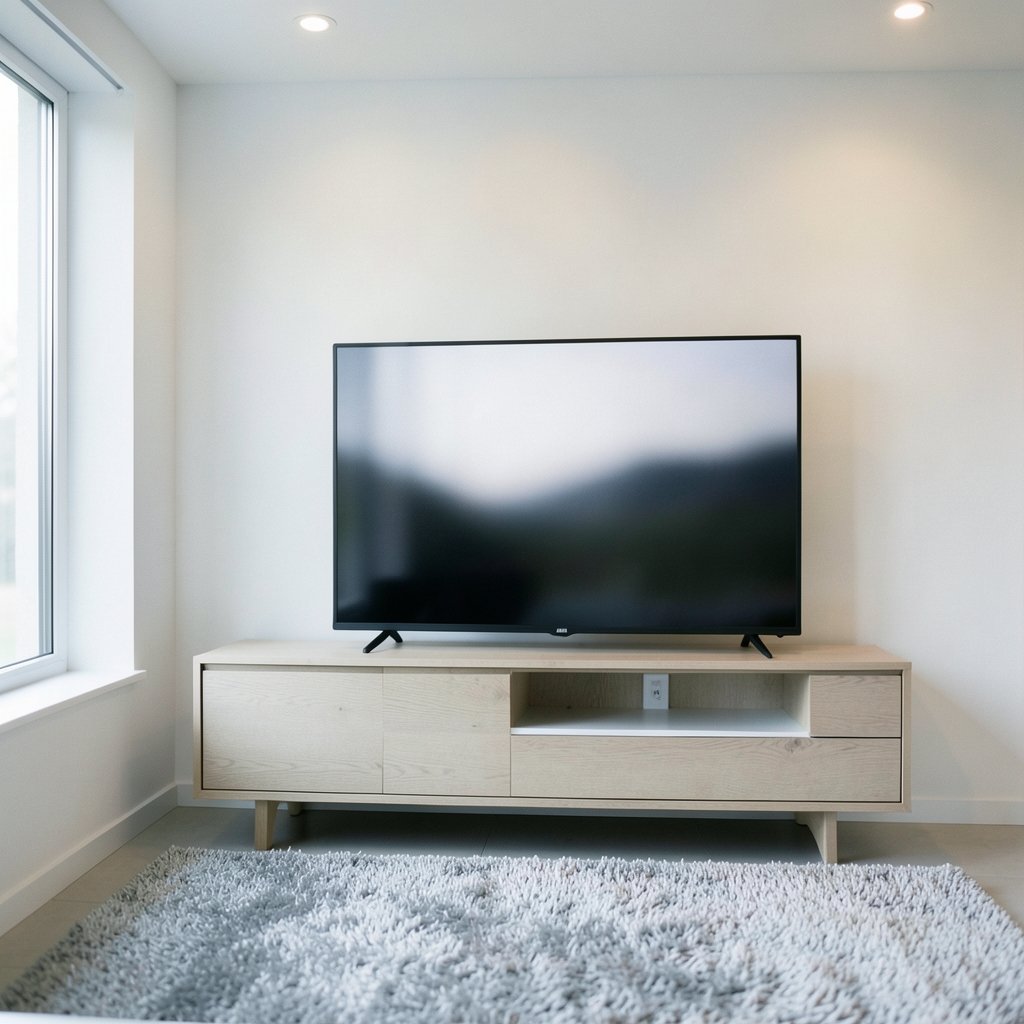
Have you ever stared at your TV or monitor and felt something was just… wrong? The picture looks slightly shifted. A sliver of the menu is missing. Text seems soft on one side. Maybe a black bar appears where there shouldn’t be one. That nagging sense that your display isn’t quite right has a name: a misaligned screen.
It’s a frustrating problem because it’s often subtle. Nothing is broken, exactly. The screen turns on, colors look fine, and yet the image doesn’t sit where it should. The good news is that most misaligned screens come down to a handful of causes, and nearly all of them are fixable without buying new hardware. This guide walks through what misalignment actually means, why it happens on TVs and computers, and the practical steps that fix it in the real world.
What “Misaligned Screen” Actually Means
The phrase gets used loosely, so it helps to pin it down. A misaligned screen usually describes one of two very different situations.
The first is a display-image problem. The picture itself is shifted, cropped, stretched, or off-center relative to the physical edges of the panel. The hardware is fine; the signal, the settings, or the scaling is wrong. This is by far the most common meaning and the one most people are searching for.
The second is a physical problem. The screen assembly itself isn’t seated correctly inside the chassis. A phone display might sit slightly proud of the frame, or a laptop bezel might not be flush. This is a manufacturing or assembly defect, not a settings issue, and it’s typically handled through warranty or consumer-protection channels rather than calibration.
The two get confused constantly, which is why advice online often misses the mark. Before diving into fixes, decide which problem you actually have. If the glass and frame look even all the way around, you’re dealing with an image problem. If the panel visibly sits crooked in its housing, you’re dealing with a hardware defect.
Why a Screen Image Drifts Out of Alignment
Overscan: The Classic TV Culprit
If your TV picture looks zoomed in, with the edges of the broadcast or menu cut off, overscan is the likely reason. Historically, television sets deliberately cropped the outer edges of the picture. The reasoning was practical: older broadcasts and analog transmission weren’t perfectly consistent at the edges, so cutting a little off the sides hid messy artifacts.
To make sure important content survived that cropping, the industry defined safe areas. The relevant international standard is ITU-R BT.1848, approved in 2008, which sets out a 16:9 safe area for production. Within that framework, content creators keep critical material inside an “action safe” zone and text inside a tighter “title safe” zone, commonly cited at roughly 93% and 90% of the frame dimensions. Those exact percentages are industry convention rather than a single mandated figure, so treat them as approximate.
Here’s the practical takeaway: overscan was a design choice, not a law of physics. Modern digital displays don’t need it. If your TV is cropping the image, the fix is usually a setting labeled something like “Just Scan,” “Screen Fit,” “1:1 Pixel Mapping,” or “Aspect Ratio: Original.” Switching to that mode tells the TV to stop cropping and show the full signal.
Resolution and Scaling Mismatches on Computers
On a computer, a misaligned image is usually about resolution and scaling. Every panel has a native resolution, the exact pixel grid it was built to display. When the signal doesn’t match that grid, the display or the graphics processor has to stretch, shrink, or reposition the image, and that’s where things go crooked.
Common symptoms include a picture that doesn’t fill the screen, black borders on some sides but not others, or content that looks soft because it’s being scaled. The operating system’s display settings control resolution, scaling, rotation, and multi-monitor arrangement, and a mismatch anywhere in that chain causes alignment trouble. The first thing to check is whether the resolution is set to the panel’s native value.
EDID: When the Monitor and Computer Miscommunicate
There’s a layer most people never think about. EDID, or Extended Display Identification Data, is how a monitor tells the computer which resolutions and timings it supports. The standard behind it is VESA’s Enhanced EDID, with revision 1.4 dating to 2006.
When EDID is corrupt, misread, or blocked by a faulty cable or adapter, the computer may guess wrong. The result can be a shifted image, a wrong resolution, or a display that simply won’t cooperate. This is a documented cause of alignment problems, and it’s why swapping a cheap cable or adapter sometimes fixes a “broken” screen instantly.
Aspect Ratio and Geometry Settings
Sometimes the culprit is simpler: the aspect ratio is set wrong. A 4:3 signal stretched to fill a 16:9 screen will look distorted, and a 16:9 signal forced into a zoom mode will lose its edges. Geometry settings on older TVs and some monitors also let you shift the image horizontally or vertically, and those settings can get nudged by accident. If someone in the house was poking around in the service menu, all bets are off.
Diagnosing the Problem with Test Patterns
The most reliable way to see what’s actually happening is a test pattern. Grids, crosshairs, and color bars are the standard diagnostic tools because they make cropping, scaling, and geometry errors obvious at a glance. (The row)
A grid pattern is especially useful. On a correctly aligned screen, the grid lines should be straight, evenly spaced, and reach the edges without being cut off. If the outer lines vanish, you’re losing part of the image. If the lines look thicker on one side, the image is being stretched. If the whole grid sits low or to the left, the image is shifted.
You don’t need professional equipment. Many TVs and monitors include built-in test patterns in their settings menus, and plenty of free test images exist for download. Display a grid, step back, and look carefully. What you see tells you which fix to try.
Fixing a Misaligned Screen: Practical Steps
The order matters here. Work from the simplest, most likely fixes toward the more involved ones.
- Check the aspect ratio and picture mode first. On a TV, cycle through the available modes and look for one that shows the full image without cropping. Names vary by brand, but “Screen Fit,” “Just Scan,” “Original,” and “1:1” all point the same direction.
- Confirm native resolution on a computer. Open display settings and set the resolution to the recommended or native value. If the option is missing, that’s a clue about a driver or EDID problem.
- Inspect scaling settings. On Windows and macOS, display scaling changes the size of text and interface elements. A scaling value that doesn’t match the panel can make things look off, especially on high-resolution laptops.
- Reseat and swap cables. A loose or low-quality HDMI or DisplayPort cable can cause handshake problems that show up as alignment glitches. Try a different cable and a different port before assuming the worst.
- Update or reinstall graphics drivers. Driver issues are a frequent cause of wrong resolution and shifted output. A clean reinstall solves more cases than people expect.
- Test with another source or display. Connect a different device to the screen, or connect the screen to a different computer. This isolates whether the problem lives in the display or in the source.
- Reset the display to factory settings. If someone changed geometry or service-menu settings, a reset wipes the slate clean.
Common Mistakes That Make It Worse
A few habits reliably turn a small alignment issue into a bigger one.
- Diving into the service menu without a backup. Service menus expose settings that can permanently shift or distort the image. Write down every original value before touching anything.
- Assuming the TV is broken. Overscan and aspect-ratio mistakes account for a huge share of “broken” TVs. Check the easy settings first.
- Ignoring the cable. People replace whole monitors when a five-dollar cable was the problem.
- Confusing physical defects with settings problems. If the panel itself sits crooked, no amount of calibration will help. Document it and contact the seller or manufacturer while the warranty is active.
When It’s a Hardware Defect
Physical panel misalignment is a different beast. If the display doesn’t sit flush with the chassis, or the bezel gaps unevenly, that’s an assembly issue. It falls under warranty and consumer-protection rules rather than calibration. The practical advice is straightforward: photograph the defect clearly, note the date of purchase, and contact the retailer or manufacturer promptly. Waiting rarely improves the outcome, and some warranties have time limits on cosmetic defects.
Misaligned Screen Across Different Devices
| Device | Typical cause | First fix to try |
|---|---|---|
| TV | Overscan or wrong aspect ratio | Switch to “Screen Fit” or “Just Scan” |
| Desktop monitor | Wrong resolution or scaling | Set native resolution in display settings |
| Laptop | Display scaling mismatch | Adjust scaling percentage |
| Phone | Physical panel seating | Warranty claim with photos |
| Projector | Keystone and geometry settings | Reset geometry, check placement |
The pattern is consistent: software and settings cause most image misalignment, while physical defects are rarer and handled differently.
A Note on Hair, Screens, and Search Confusion
Search results for “misaligned screen” occasionally pull in unrelated content, because the phrase collides with other topics. Readers researching textured hair sometimes land on display articles by mistake, and vice versa. If you were actually looking for guidance on styling coils and curls, resources on 4c hair cover the topic properly, and a guide to 2b hair explains the looser wave pattern. Neither has anything to do with pixels, but search engines don’t always know that. For display problems, stick with the steps above.
Why Alignment Matters More Than You Think
A slightly misaligned screen is easy to dismiss as a minor annoyance, but it has real consequences. Cropped edges can hide subtitles, scoreboards, or interface buttons. Scaled images look softer, which adds eye strain during long sessions. And in professional contexts, from video editing to medical imaging, an image that isn’t pixel-accurate can lead to genuinely wrong decisions.
This is why the safe-area standards exist in the first place. Broadcasters and filmmakers assume some viewers will have misaligned screens, so they build in margins. Understanding that convention helps you see why content sometimes looks like it has extra padding, and why fixing your own display makes everything snap into place.
Conclusion
A misaligned screen is rarely a mystery once you know where to look. On a TV, overscan and aspect-ratio settings are the usual suspects, and switching to a pixel-perfect mode fixes most cases in seconds. On a computer, resolution, scaling, drivers, and the humble cable account for the overwhelming majority of problems. Test patterns make diagnosis quick, and a methodical approach from simple settings to hardware checks saves both time and money.
The key is to identify which kind of misalignment you’re facing before you start changing things. Image problems respond to settings. Physical defects respond to warranty claims. Get that distinction right, work through the fixes in order, and your screen will line up the way it was always meant to.
Frequently Asked Questions
What does a misaligned screen look like?
A misaligned screen typically shows an image that’s shifted, cropped, stretched, or off-center. You might see black bars on some edges, missing menu items, or content that looks zoomed in. On a computer, text may appear soft because the image is being scaled away from the panel’s native resolution.
Is a misaligned screen always a hardware problem?
No. Most misaligned screens are caused by settings, not broken hardware. Overscan on TVs, wrong resolution on computers, scaling mismatches, and faulty cables account for the majority of cases. Physical panel misalignment is real but far less common, and it’s usually visible as an uneven gap between the screen and its frame.
How do I fix overscan on my TV?
Look through your TV’s picture or aspect-ratio settings for a mode labeled “Screen Fit,” “Just Scan,” “1:1 Pixel Mapping,” or “Original.” Selecting it tells the TV to display the full signal without cropping the edges. The exact name varies by brand, so check the manual if you can’t find it.
Why is my monitor image shifted to one side?
A shifted monitor image usually points to a resolution or timing mismatch. Confirm the display is set to its native resolution, then check scaling settings and try a different cable or port. If the problem persists, the monitor’s EDID data may be misread, which a driver reinstall or cable swap often resolves.
Can a bad cable cause a misaligned screen?
Yes. A loose, damaged, or low-quality HDMI or DisplayPort cable can disrupt the handshake between devices, leading to wrong resolution, shifted images, or flickering. Swapping the cable is one of the quickest and cheapest diagnostic steps, and it solves a surprising number of cases.
What should I do if the screen itself sits crooked in the frame?
That’s a physical assembly defect rather than a settings issue. Photograph the uneven gap clearly, keep your purchase receipt, and contact the retailer or manufacturer while the warranty is still active. Calibration won’t fix a panel that isn’t seated correctly, and cosmetic defects sometimes have shorter claim windows than functional ones.