
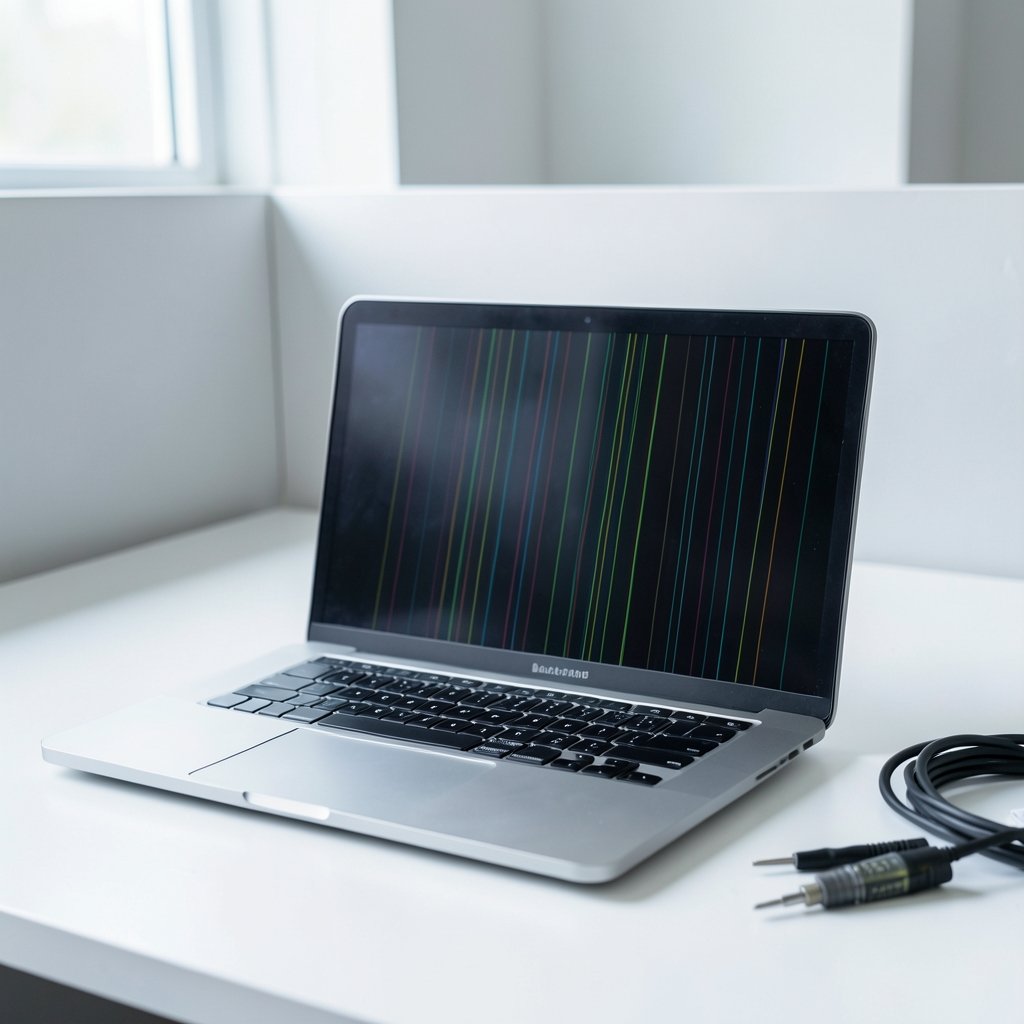
A laptop screen suddenly shows a bright vertical stripe, a flickering horizontal band, or a grid of thin colored lines. Is the panel dead, is the cable loose, or is something worse going on inside? The answer matters, because one of those problems costs a few dollars to fix and another can cost more than the laptop is worth.
The good news is that lines on a laptop screen are one of the more diagnosable faults in modern computing. A handful of tests, most of them free, can tell you within ten minutes whether you are dealing with a cable, a panel, or a graphics problem. This guide walks through what the lines actually are, how to isolate the cause, what repairs realistically cost, and when to push for a warranty claim instead of paying out of pocket.
What causes lines on a laptop screen?
Lines on an LCD are almost always a hardware fault, not a software one. The display is built from a thin-film-transistor panel with a grid of row and column driver lines. Each pixel sits at the intersection of those lines, switched by a driver circuit bonded to the edge of the glass. When a column driver, a row driver, or the bond between the driver chip and the glass fails, an entire line of pixels goes dark, bright, or stuck on one color. That is why single-line defects tend to be permanent and panel-level: the electronics that would fix them are part of the glass itself.
In practice, the culprits fall into a short list:
- The display cable. A flat ribbon or flex cable carries the video signal from the mainboard, through the hinge, to the panel. Repeated opening and closing of the lid flexes this cable thousands of times over a laptop’s life, and it is a recognized wear point.
- A loose or damaged connector. The cable ends in a small connector that can work loose after a drop or a botched repair.
- Panel damage. A cracked, delaminated, or internally failed panel produces lines that do not move or change.
- GPU or driver problems. Rarer, but real. Artifacts that follow the mouse cursor, change with resolution, or appear only under load point away from the panel.
- Pressure damage. Closing the lid on a pen, or a heavy object on a closed laptop, can bruise the panel and leave a permanent line or blotch.
The ten-minute diagnostic that tells you where the fault lives

Before spending anything, run these tests in order. Each one eliminates a category of cause.
- Look at the BIOS or UEFI setup screen. Restart the laptop and press the setup key (often F2, F10, or Del) before the operating system loads. If the lines are visible in firmware, the operating system and its drivers are innocent. The fault is hardware.
- Connect an external monitor. If the external screen is clean while the laptop panel shows lines, the graphics chip is fine and the problem sits in the panel, cable, or connector. If lines appear on both screens, suspect the GPU or its driver.
- Boot a live USB system. Running a Linux live environment from a USB stick takes the installed operating system out of the equation without touching your files. Lines that persist here confirm a hardware cause.
- Move the lid. Slowly open and close the screen while watching the lines. Lines that flicker, appear, or vanish at certain angles are a strong signal of a failing cable or a loose connector at the hinge.
- Apply gentle pressure. Light pressure along the bottom bezel or the edges of the panel can make a marginal cable connection reveal itself. Do not press hard on the glass.
- Check the refresh rate and resolution. If lines appear only at one setting, or artifacts trail the cursor, update or roll back the graphics driver before condemning the hardware.
A pattern worth remembering: lines that are perfectly straight, fixed in place, and present from the moment the machine powers on are almost always panel or cable. Lines that shimmer, appear only in games, or change when you move a window are usually GPU or driver.
Reading the pattern: what different lines mean
Not all lines tell the same story. The appearance and behavior of the defect narrows the diagnosis considerably.
| What you see | Most likely cause | Typical fix |
|---|---|---|
| One or two solid vertical lines, fixed | Column driver or panel bond failure | Panel replacement |
| Horizontal band that flickers when the lid moves | Display cable worn at the hinge | Cable replacement |
| Lines across the whole screen, changing with angle | Loose connector or damaged cable | Reseat or replace cable |
| Colored artifacts following the cursor | GPU or driver fault | Driver update, then GPU diagnosis |
| Lines only after the laptop warms up | Marginal solder joint or failing panel | Professional diagnosis |
| A single dead or bright pixel | Pixel defect | Usually nothing; check warranty policy |
That last row matters more than people expect. Pixel defects are covered by a formal classification standard, ISO 9241-307, which sorts displays into pixel-fault classes and sets limits on how many defective pixels a screen may have. A whole line of failed pixels is a different beast, and there is no single public standard that classifies a line as a warranty defect across all manufacturers. Policies vary by brand and by region, which is exactly why the next section matters.
Is it worth repairing, and what does it cost?
Repair economics decide most of these cases. Cable and connector repairs are relatively cheap because the part is inexpensive and the labor is modest. Panel replacement is the opposite: the panel is often the single most expensive component in a laptop, and the bill can approach a large fraction of the machine’s value. On a five-year-old budget laptop, a panel swap frequently costs more than the computer is worth.
Three paths make sense depending on the diagnosis:
- Cable or connector fault: repair. It is the cheapest fix and restores full function.
- Panel fault on a machine still under warranty or legal guarantee: claim it. Do not pay first.
- Panel fault on an old or low-value machine: weigh the repair against replacement, and consider using an external monitor as a permanent workaround if the laptop is otherwise healthy.
One practical tip from the repair bench: get a written quote that names the specific part being replaced. A quote that says “screen repair” tells you nothing. A quote that lists a panel part number lets you check the price of that panel yourself and see how much of the bill is labor.
The DIY route: what actually works and what ruins laptops
Replacing a display cable is a genuine DIY job for someone comfortable with small connectors and a plastic pry tool. Replacing a panel is harder but doable on many models, and teardown guides exist for most popular laptops. The mistakes people make are consistent:
- Prying the bezel with metal tools. A metal spudger scratches the bezel and can crack the panel underneath. Plastic tools only.
- Pulling the connector by the wires. Display connectors are delicate. Pull the connector body, never the cable.
- Skipping the battery disconnect. Working on a laptop with the battery connected risks shorting the board. Disconnect it first.
- Forgetting the grounding. Static discharge kills more components than clumsiness does.
- Assuming the first panel you find fits. Panels are matched by part number, connector type, and mounting tabs. A visually identical panel with the wrong connector is useless.
If any of that sounds like more risk than you want, a local repair shop is the sensible call. Ask specifically whether they will diagnose the cable before replacing the panel, because a shop that jumps straight to a panel swap may be charging you for the most expensive possible fix.
Warranty, legal guarantees, and the right to repair
Consumer law gives buyers more leverage than many realize. In the European Union, the sale-of-goods directive sets a minimum two-year legal guarantee period for goods, with a burden-of-proof reversal in many cases that puts the onus on the seller to show the fault was not present at delivery. Member states may extend these periods. In the UK, the Consumer Rights Act 2015 provides a 30-day short-term right to reject faulty goods and a longer window to claim, with the limitation period running up to six years in England and Wales.
The EU has also moved on repairability. A 2024 directive on promoting the repair of goods requires repair options and extends guarantees for goods that have been repaired. Exact transposition dates vary by country, so check the national implementing law rather than assuming.
The practical upshot: if your laptop is within its guarantee period and the lines are not caused by accidental damage, contact the seller, not the manufacturer’s support line. The seller is who owes you the remedy under EU rules. Keep photographs of the fault, note when it first appeared, and describe the diagnostic steps you took. A support agent who hears “I checked it in the BIOS and on an external monitor” is far less likely to waste your time with driver-update scripts.
When the lines are not the panel at all
A minority of cases turn out to be something else entirely, and it is worth ruling these out before ordering parts.
Driver corruption can produce banding and artifacts that look like hardware failure. A clean reinstall of the graphics driver, or a rollback to an earlier version, resolves these. If the lines vanish in safe mode, this is your likely cause.
A failing GPU shows itself through artifacts that move, spread, or appear under load, and sometimes through crashes and black screens. On laptops with discrete graphics, this is a board-level repair and usually the worst-case scenario.
Memory problems can occasionally produce display corruption, though this is uncommon and usually comes with other symptoms like random restarts.
Loose internal connections after a repair are a frequent cause. If the lines started right after someone opened the laptop, the first suspect is whatever they touched.
Hair type has nothing to do with laptop screens, but the same diagnostic principle applies across both worlds: identify the category of fault before spending money on a fix. Someone comparing 2b hair routines or reading up on 4c hair care is doing exactly the kind of category-first thinking that saves money here too. The row of tests above works the same way: each step narrows the field until only one suspect remains.
Conclusion
Lines on a laptop screen look alarming, but they are one of the more tractable faults a modern laptop can develop. The BIOS test and the external monitor test together tell you within minutes whether the problem is hardware, and if it is hardware, whether it lives in the cable, the panel, or the graphics chip. From there, the decision is mostly economic: repair a cheap cable, claim a warranty on a covered panel, and think hard before pouring money into a panel replacement on an aging machine. Do the diagnosis first, get a quote that names the part, and let the evidence rather than the panic decide.
FAQ
Do lines on a laptop screen fix themselves?
Almost never. A line caused by a failing driver circuit on the panel glass is permanent. A line caused by a loose connector can sometimes disappear when the lid moves to a different angle, but that is a symptom of an unstable connection, not a repair. If the lines come and go, treat it as a warning and get the cable checked before it fails completely.
Can a software update cause lines on the screen?
It can, though it is uncommon. A corrupted or incompatible graphics driver can produce banding, flickering, and artifacts that mimic hardware failure. The test is simple: if the lines appear in the BIOS setup screen before any operating system loads, software is not the cause. If they appear only after the OS starts, reinstall or roll back the driver.
How much does it cost to fix lines on a laptop screen?
It depends entirely on the cause. A display cable or connector repair is the cheapest option because the part is inexpensive. A panel replacement is the most expensive and can approach a large fraction of the laptop’s value, which is why it rarely makes sense on older budget machines. Get a written quote that identifies the specific part before committing.
Are lines on a laptop screen covered by warranty?
Often, if the laptop is within its guarantee period and the fault is not accidental damage. In the EU, the sale-of-goods directive sets a minimum two-year legal guarantee, and in the UK the Consumer Rights Act 2015 provides statutory remedies. Policies on line defects vary by brand and region, so check the terms and contact the seller rather than assuming the answer.
Can I replace a laptop screen myself?
Many people can, provided they have the right part number, plastic pry tools, and the confidence to disconnect delicate connectors. The common failure points are prying the bezel with metal tools, pulling connectors by the wires instead of the body, and forgetting to disconnect the battery first. If any of that feels risky, a repair shop is the safer choice.
How do I know if the lines are the screen or the graphics card?
Connect an external monitor. If the external display is clean and the laptop panel shows lines, the graphics card is fine and the fault is in the panel, cable, or connector. If lines appear on both screens, suspect the GPU or its driver. Running a live USB system confirms whether the installed operating system is involved.