
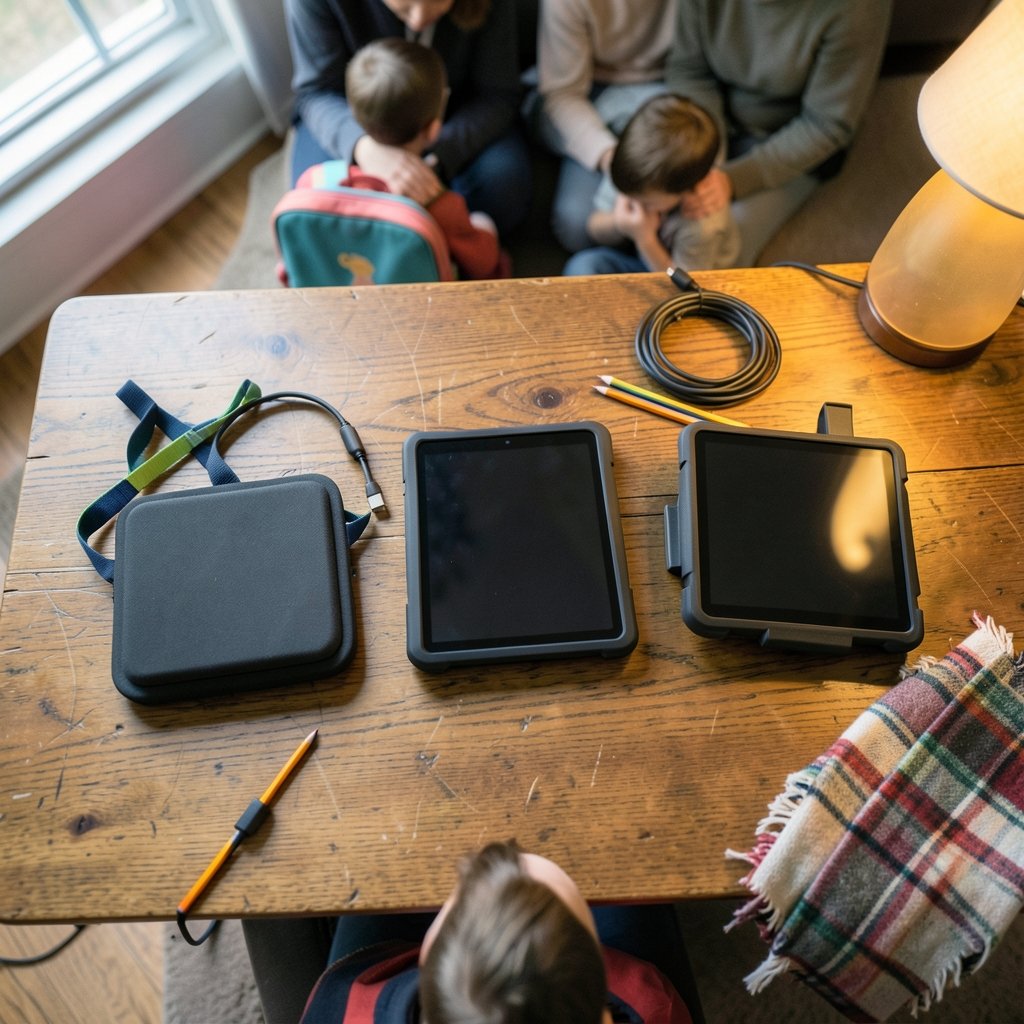
What if the hardest part of buying a kids tablet isn’t the price, but figuring out which one your child won’t outgrow, break, or quietly stop using within six months? Walk into any electronics store and you’ll see rows of brightly colored devices promising “kid-safe” everything. The marketing is loud. The differences between models are quieter, and they matter far more than the box art suggests.
This guide cuts through the noise. It covers what separates a genuinely good kids tablet from a mediocre one, how the major platform options compare, what privacy laws mean for your family, and the practical habits that keep a tablet useful for years instead of weeks.
What Actually Makes a Kids Tablet “Good”?
A kids tablet isn’t just a cheap tablet with a rubber case. The best ones are built around three things: durability, a locked-down software environment parents control, and content that grows with the child.
Durability is the first filter. Look for a device sold with a protective bumper included, not as a separate purchase. A tablet that survives a drop from the kitchen table onto tile is worth more than one with a sharper screen that shatters on contact.
Parental controls are the second filter. The good ones let you set time limits, approve or block apps, filter websites, and review activity without hovering over your child’s shoulder. Weak controls are buried in settings, easy for a curious kid to bypass, or so rigid that they make the tablet frustrating to use.
Content and apps is the third. A tablet is only as good as what runs on it. Some platforms bundle a curated subscription of books, games, and videos. Others rely on app stores where you’ll need to vet every download yourself.
One more factor deserves attention: longevity. Children grow fast. A tablet locked to a toddler-only interface becomes useless by age eight. The best options shift from a walled garden for preschoolers to a more open but still supervised setup for older kids.
The Main Platform Options Compared

Most kids tablets fall into three families: Amazon’s Fire Kids line, Apple’s iPad with parental controls, and Android tablets from brands like Samsung. Each has a distinct personality.
| Feature | Amazon Fire Kids | iPad (with Screen Time) | Android Kids Tablets |
|---|---|---|---|
| Typical price position | Budget | Premium | Mid-range |
| Protective case included | Yes, with a replacement guarantee | No, sold separately | Sometimes |
| Built-in kid content subscription | Yes, bundled for a limited period | No, apps purchased separately | Varies by brand |
| Parental control depth | Strong, simple dashboard | Strong, more granular | Good, depends on setup |
| App and game library | Smaller, curated | Largest available | Large |
| Best for | Families wanting an all-in-one package | Families wanting one device to last years | Families already using Google apps and services |
The Fire Kids approach is the most plug-and-play. You get the tablet, a chunky kid-proof case, and a subscription to a curated content library, usually free for a set period before it renews. The trade-off is a smaller app selection and a interface that feels more utilitarian than polished.
The iPad route costs more upfront and requires you to buy a case and manage apps yourself. In exchange, you get a device that stays fast and supported for years, plus the broadest app library. Apple’s Screen Time tools, built into iOS and iPadOS since 2018, handle time limits, content restrictions, and purchase approvals through “Ask to Buy.”
Android tablets sit in the middle. Google’s Family Link app, available since 2017, gives parents a control panel for screen time, app approvals, and location. The experience varies by manufacturer, so the case and software polish depend heavily on which brand you pick.
Privacy Laws Every Parent Should Know
Here’s a part of tablet shopping that rarely makes the sales pitch: the legal framework protecting your child’s data.
In the United States, the Children’s Online Privacy Protection Act (COPPA) has restricted the collection of personal data from children under 13 without verifiable parental consent since 2000. The Federal Trade Commission finalized amendments to the COPPA rule in January 2025, tightening consent and data-retention requirements. This is why kids’ tablets ship with parent-managed accounts and why some apps ask for a grown-up’s approval before anything happens.
In the United Kingdom, the Age Appropriate Design Code, in force since September 2021, requires services likely to be used by children to default to high privacy settings. In the European Union, GDPR Article 8 sets the default age of digital consent at 16, though member states can lower it to 13.
What does this mean in practice? A tablet that follows these rules will push you toward a parent account, default to private settings, and limit data collection. If a device or app seems to skip those steps, treat it as a warning sign. The rules exist because children’s data is valuable, and not every company handles it carefully.
Screen Time: What the Guidance Actually Says
Buying the tablet is the easy part. Deciding how much it gets used is where families struggle.
Pediatric guidance has consistently favored limits over bans. The American Academy of Pediatrics has recommended consistent screen-time rules and co-viewing for young children, with later guidance emphasizing that content quality and context matter as much as minutes. The practical takeaway: a tablet used together with a parent, for a specific purpose, beats one used as a passive babysitter.
In practice, the families who report the smoothest experience tend to do three things:
- Set the timer before handing over the device. A built-in limit that ends the session automatically removes the parent from the role of enforcer.
- Curate the library first. Approve a small set of apps and let the child choose within that set. Endless choice leads to endless negotiation.
- Keep one screen-free zone. Meals, car rides, or bedtime, pick one and hold the line. Consistency matters more than which zone you choose.
If you’re looking for low-screen alternatives that still engage kids, games and jokes work surprisingly well. A round of would you rather questions for kids or a stack of clean jokes for kids can fill a waiting room or a rainy afternoon without a screen at all.
Practical Tips From Real-World Use
A few habits separate families who get years of use from a tablet from those who replace it annually.
Buy the case at the same time as the device. The most common mistake is treating the case as optional. A dropped tablet with no bumper is a cracked screen waiting to happen. If the model you want doesn’t include one, budget for it.
Set up the parent account before the first handover. Children who watch you configure restrictions are more likely to test them. Set everything up, then present the finished device.
Test the controls yourself. Before trusting a parental dashboard, try to bypass it. Can your child open a browser? Can they install an app without approval? Can they change the clock to dodge a time limit? Ten minutes of testing saves months of frustration.
Check the subscription renewal date. Bundled content subscriptions often convert to paid after a trial window that varies by model and promotion. Put the renewal date in your calendar so the first charge isn’t a surprise.
Plan for the hand-me-down. A tablet bought for a five-year-old will eventually belong to a seven-year-old who wants different apps. Choose a device that can shift from a locked-down kids profile to a supervised standard profile, rather than one permanently stuck in toddler mode.
Keep a shared activity in reserve. Tablets are excellent for quiet time but poor substitutes for connection. A family game night, a joke book, or a collection of funny puns for kids gives children something to enjoy that doesn’t require charging.
Matching the Tablet to the Child
Age changes everything. A device that suits a four-year-old is wrong for a ten-year-old, and buying “up” too early usually backfires.
For preschoolers (ages 3 to 5), prioritize a rugged case, a simple interface with big icons, and a curated content library. The Fire Kids line is built for exactly this stage. Avoid open app stores and web browsers entirely at this age.
For early elementary (ages 6 to 8), look for a device that supports reading apps, simple creative tools, and educational games. Parental controls should still be firm, but the child can start learning to manage their own time with a visible timer.
For tweens (ages 9 to 12), the calculus shifts. This is where an iPad or a capable Android tablet earns its price, because schoolwork, video calls, and creative apps enter the picture. Supervision remains important, but the goal becomes teaching responsible use rather than blocking everything.
One underrated consideration: shared family devices. If the tablet will be passed between siblings, look for multi-profile support so each child gets their own settings and content. It prevents the older child’s games from cluttering the younger child’s home screen and keeps time limits per-child rather than per-device.
Conclusion
The best kids tablet isn’t the cheapest one or the one with the flashiest marketing. It’s the device that matches your child’s age, survives real life, and gives you controls you actually understand. Amazon’s Fire Kids line wins on all-in-one convenience and included protection. An iPad wins on longevity and app depth if the budget allows. Android tablets offer a sensible middle path, especially for families already using Google’s tools.
Whichever you choose, the setup matters more than the spec sheet. Configure the parent account first, test the controls, set the renewal reminder, and pair screen time with plenty of screen-free fun. Do that, and the tablet becomes a useful tool instead of another gadget that ends up in a drawer.
Frequently Asked Questions
What age is appropriate for a first kids tablet?
Most children can start using a tablet with heavy parental supervision around age three, provided the device has a rugged case, a locked-down interface, and a curated content library. Before that, passive video on a shared family screen with a parent present tends to be more appropriate than a personal device. The key marker isn’t age alone but whether the child can follow simple rules about when and how long to use it.
Are Amazon Fire Kids tablets worth it compared with an iPad?
They serve different purposes. Fire Kids tablets are cheaper, include a protective case and a replacement guarantee, and bundle a curated content subscription, which makes them a strong first device. An iPad costs more and needs a separate case, but it stays fast and supported for years and offers a far larger app library. Families with one young child often start with Fire; families wanting a device that lasts into the teen years often choose iPad.
How do I stop my child from bypassing parental controls?
Test the controls yourself before handing over the device. Try opening a browser, installing an app, and changing the system clock, since these are the three most common workarounds. Then lock down the settings with a parent passcode your child doesn’t know, disable app installation without approval, and check the activity dashboard weekly. If a control can be bypassed in under a minute, it will be.
Is the bundled kids content subscription really free?
Usually only for a limited period. Bundled subscriptions typically come free for a set window that varies by model and promotion, then renew at a monthly or annual rate. The exact terms change frequently, so check the current offer at purchase and put the renewal date in your calendar. If you don’t plan to keep it, cancel before the first charge.
How much screen time should a child get on a tablet?
Guidance from pediatric organizations has moved away from rigid minute counts toward quality and context. The consistent themes are: set regular limits, choose content carefully, and use screens together when possible. In practice, many families find a daily cap with clear start and end points works better than an open-ended allowance, because predictable rules reduce conflict.
Do kids tablets collect my child’s data?
They can, which is why the rules around children’s data exist. In the US, services must obtain verifiable parental consent before collecting personal information from children under 13, and the rules were tightened in early 2025. In the UK, services likely to be used by children must default to high privacy settings. When setting up a tablet, use the parent account, keep privacy settings at their strictest, and decline optional data-sharing prompts.