
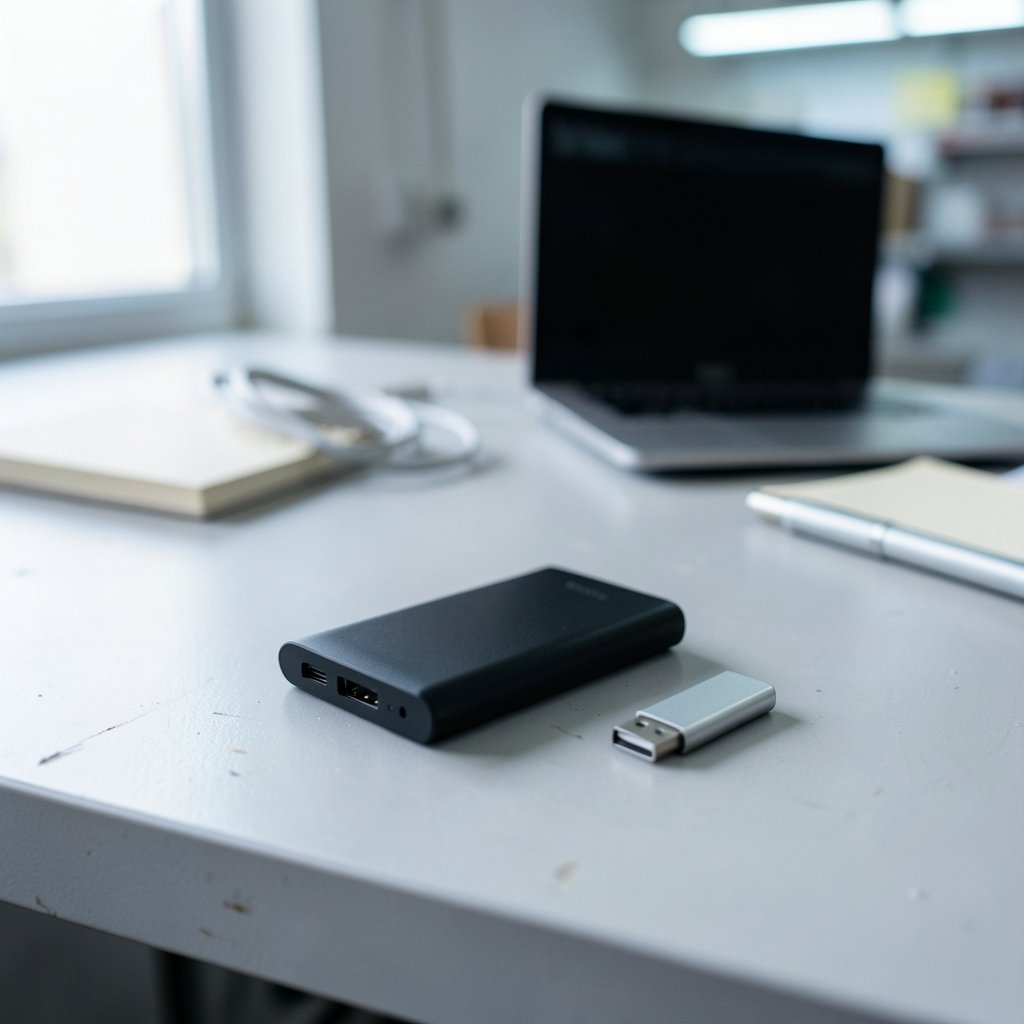
What does it mean when someone says their files are on the “G drive hard drive”? Here is the twist: there may be no such thing as a “G drive.” The letter G is a label, not a piece of hardware. It can point to a physical disk, a USB stick, a network folder on another machine, or nothing at all. It can also mean Google Drive, which is not a hard drive in any sense. Sorting out which one you are dealing with takes about two minutes once you know where to look, and it saves a lot of confusion when files go missing or a backup plan needs to be built.
The Letter G Is a Label, Not a Device
Windows assigns letters to volumes. The convention goes back to MS-DOS in 1981, when A: and B: were reserved for floppy drives and C: became the boot volume. That system survived into modern Windows mostly for backward compatibility, and it is still how the operating system presents storage to users today.
The practical consequence is simple. A drive letter tells you where a volume sits in the naming scheme, not what kind of hardware it is. A G: drive could be:
- An internal hard disk drive (HDD) with spinning magnetic platters
- A solid-state drive (SSD) using flash memory
- A USB flash drive or external enclosure
- An optical disc
- A memory card reader slot
- A mapped network share pointing to a folder on another computer or server
That last one catches people out constantly. A mapped network drive looks and behaves like a local disk in File Explorer, but the data lives on a different machine. If the network is down, G: may show a red X or refuse to open. Nothing is wrong with any hard drive, because there may not be a local hard drive involved at all.
Common Ways People End Up With a G Drive

Most Windows machines never show a G: volume. When one appears, it usually came from one of these situations.
A second or third internal disk
A desktop with multiple drives often assigns C: to the system volume, D: to a data disk, and letters further along to additional partitions. A laptop with one drive split into several partitions can do the same. In this case, G: really is a physical hard drive or SSD inside the case.
An external drive plugged in
USB external drives take the next free letter. Plug in a portable HDD and it might land on G: today and H: tomorrow, depending on what else is connected. This is why relying on the letter for anything automated is a mistake.
A mapped network drive
In office environments, IT departments often map a shared folder to a fixed letter so staff can find team files in the same place every day. The G: here is a shortcut to a server, not storage on the local machine.
A virtual or mounted disk image
Disk image files and virtual machine disks can be mounted and assigned letters. They behave like real volumes until you unmount them.
Why the Letter Can Change Under You
Drive letters are not stable identifiers. Windows lets users reassign them through Disk Management, and removable media grab whatever letter is free at the moment of connection. Two machines sitting side by side can have completely different devices on G:.
This matters more than it sounds. A shortcut, a script, or a backup job that points to G:Projects will break the moment the letter shifts. Practical habit worth adopting: check the volume label and capacity in File Explorer before trusting a letter. If the drive shows up as “Elements” with 2 TB free on Monday and “Backup Plus” with 500 GB on Tuesday, something changed.
Another habit that pays off: never store the only copy of anything on a letter you have not confirmed. Open the drive, look at the folder structure, and make sure it is the device you think it is.
Google Drive Is Not a Hard Drive
Search interest in “G drive” often comes from people looking for Google Drive, the cloud storage service that launched in April 2012. It is worth being blunt about the difference.
Google Drive stores files on Google’s servers. A local copy may sit in a sync folder on the computer, but the service itself is not a physical disk. When the free storage tier ran out or the sync client stopped, the files are still in the cloud, reachable from a browser on any device. That is a fundamentally different failure mode from a hard drive dying.
| Feature | Local G: drive (physical) | Google Drive (cloud) |
|---|---|---|
| Where data lives | On a disk in or attached to the computer | On remote servers |
| Access without internet | Works normally | Limited to cached local copies |
| Risk of total loss | High if the disk fails and no backup exists | Low, but account access matters |
| Drive letter involved | Yes, assigned by Windows | No, appears as a folder or app |
| Typical capacity | Fixed by the hardware | Shared quota across services |
The storage quota has changed over the years. Google merged Drive, Gmail, and Photos into a shared allowance in 2021, and the free tier has been adjusted since. Anyone planning around a specific free number should check their own account rather than trust an old article.
The Third Meaning: G-DRIVE Branded Hardware
There is a genuine product line called G-DRIVE, sold under the G-Technology brand that Western Digital acquired in 2012 and later folded into SanDisk Professional. These are external hard drives, usually USB or Thunderbolt, marketed to Mac users and creative professionals working with large media files.
So a person can legitimately own a “G drive hard drive” in the sense of a G-DRIVE enclosure. It will still receive some Windows letter when plugged in, but the name comes from the product, not the letter. If someone is shopping for one, the specifications that matter are capacity, interface speed, and whether the drive ships formatted for Mac or Windows.
HDD or SSD? The Distinction That Actually Matters
Once the letter question is settled, the more useful question is what technology sits behind it. Hard disk drives store data magnetically on rotating platters. Solid-state drives use flash memory with no moving parts.
The trade-offs are well established. HDDs offer more capacity per dollar and are fine for archives, media libraries, and backups. SSDs are faster, quieter, and more resistant to knocks, which makes them the better choice for a laptop that travels. A G: volume could be either, and the letter gives no clue.
For anyone doing creative work with large files, the difference shows up fast. Scrubbing through video footage on a slow spinning drive feels sluggish. The same footage on an SSD responds instantly. Neither is “better” in the abstract; they solve different problems.
Practical Steps to Identify What G: Really Is
When a G: drive appears and its identity is unclear, this sequence settles it.
- Open File Explorer and right-click the G: entry, then choose Properties. The volume label, file system, and total capacity give strong hints.
- Check whether the drive type says “Network drive.” If it does, the data is on another machine.
- Open Disk Management (search for “Create and format hard disk partitions”). It shows whether the volume is a physical disk, a removable device, or a network mapping.
- Unplug suspected external devices one at a time and watch whether G: disappears.
- If the drive is mapped, open a command prompt and run net use to list all network mappings and their targets.
That last step is the fastest way to confirm a network mapping, and it also reveals the server path behind the letter.
Mistakes People Make With Lettered Drives
A few patterns come up again and again, and each one is easy to avoid.
Assuming the letter is permanent. It is not. Any automated process that hardcodes G: will eventually fail on a machine where the letter moved.
Treating a mapped drive as a backup. If the “backup” lives on a network share controlled by the same organization, a ransomware event or a permissions mistake can take out both copies. Real backups live somewhere the original cannot reach.
Ignoring the difference between sync and backup. A cloud sync folder mirrors deletions. Delete a file locally and it vanishes from the cloud too. Version history helps, but only for a limited window.
Never checking drive health. Physical drives fail, and they usually warn first. Listening for clicking, watching for slow reads, and checking SMART status takes minutes and can save years of work. For anyone storing a large photo or video library, this habit matters more than any other.
Forgetting that formatting decisions follow the drive. A drive formatted for one operating system may appear on a Windows machine as an unreadable volume with a letter attached. The letter shows up; the files do not. Checking the file system before assuming data loss is worth the thirty seconds.
When the Letter Is a Clue About Hair, Not Hardware
Odd search results sometimes surface when a query is ambiguous. Someone typing “g drive” alongside unrelated terms may land on pages about curl patterns, since hair typing guides discuss 4c hair and looser textures like 2b hair in detail. These have nothing to do with storage, but they illustrate a real point about search: short, ambiguous queries pull in unrelated material, and narrowing the wording fixes it fast. Adding “Windows” or “external” to the query does the job.
The same ambiguity applies to media coverage of storage brands, where a product roundup might sit right next to a feature on the row between competing drive makers. Context is everything.
Conclusion
A “G drive hard drive” is usually one of three things: a Windows volume that happens to carry the letter G, a Google Drive account that is not a hard drive at all, or a G-DRIVE branded external disk. The letter itself carries no information about hardware, capacity, or reliability, and it can change without warning. The reliable approach is to identify the volume by its label, capacity, and connection type, then decide whether it needs a backup plan. Letters are conveniences, not guarantees, and treating them that way prevents most of the confusion people run into.
Frequently Asked Questions
Is the G drive always a physical hard drive?
No. A G: volume can be an internal HDD, an SSD, a USB stick, an optical disc, or a mapped network folder on another computer. The letter is assigned by the operating system and says nothing about the underlying hardware.
Why did my G drive suddenly disappear?
The most common causes are an unplugged external device, a dropped network connection for a mapped drive, or a letter reassignment after another device connected. Checking Disk Management and the net use command usually reveals which one happened.
Is Google Drive the same as a G drive hard drive?
No. Google Drive is cloud storage that keeps files on remote servers and syncs copies to devices. It has no drive letter and no physical disk of its own, though its desktop app creates a local folder that looks similar in File Explorer.
Can I change a drive letter from G to something else?
Yes. Windows Disk Management allows reassignment of most volume letters. Note that changing a letter can break shortcuts, scripts, and installed programs that reference the old path, so it is worth checking dependencies first.
What is a G-DRIVE external hard drive?
G-DRIVE is a product line of external hard drives sold under the G-Technology brand, which Western Digital acquired in 2012 and later moved into SanDisk Professional. These are physical USB or Thunderbolt drives, typically aimed at Mac and creative users.
How do I know if my G drive is a network drive or a local disk?
Right-click the drive in File Explorer and open Properties. If the type reads “Network drive,” the data sits on another machine. Disk Management and the net use command give a definitive answer for mapped drives.