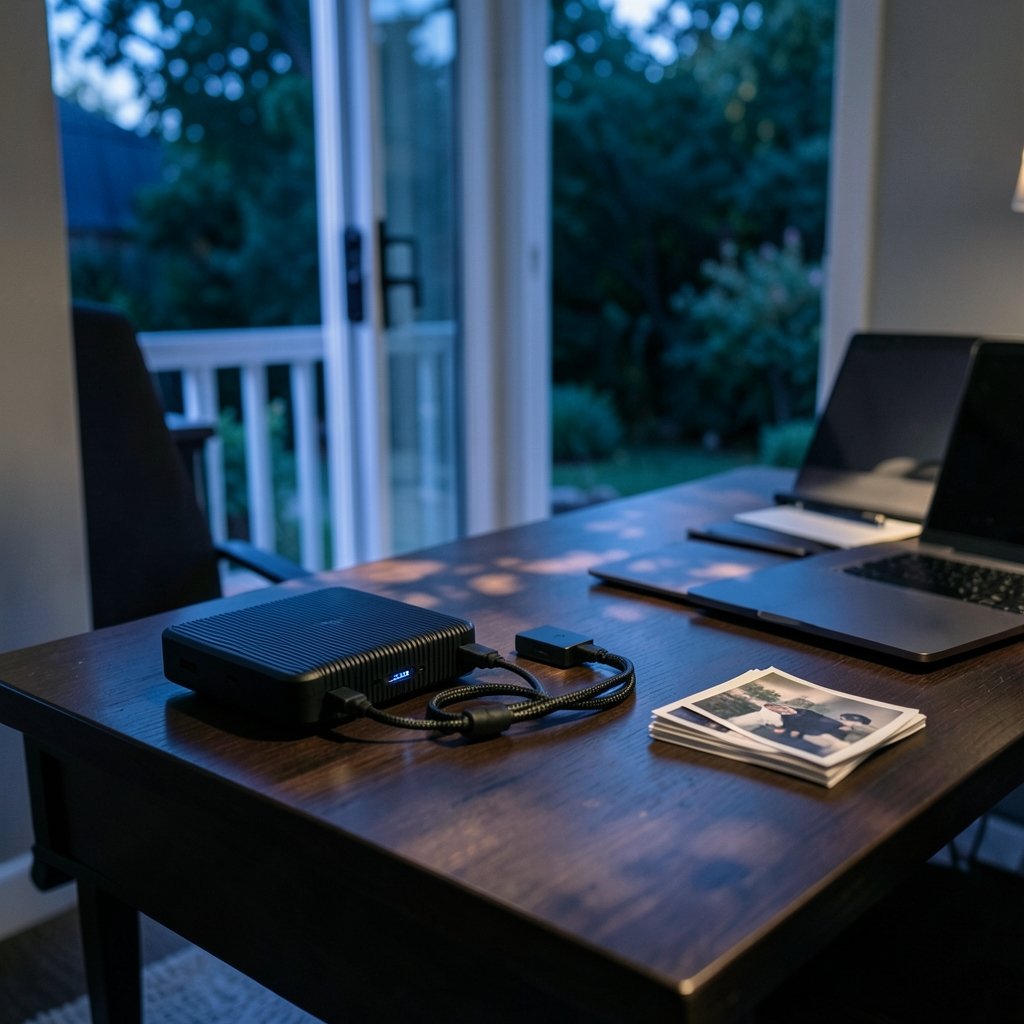
What happens to your photos, tax files, and half-finished projects if your laptop’s drive dies tomorrow? For most people, the honest answer is “nothing good.” A backup drive is boring insurance, right up until the day it saves you. The problem is that the shelf is crowded with drives that look nearly identical and promise nearly identical things.
This roundup skips the theory and names specific drives. Each pick below suits a particular kind of buyer, and each has a real weakness worth knowing before you pay. Prices move constantly, so treat any figure here as a starting point and check the listing before checkout.
Comparison Table: The Shortlist at a Glance
| Drive | Best for | Standout strength | Main limitation | Listed test price |
|---|---|---|---|---|
| SanDisk Extreme Portable SSD | Most people | Lightweight, rugged, IP65 rated | Not the fastest tier | Not stated |
| Corsair EX400U | Speed chasers | Ultrafast read/write, MagSafe option | Pricier than close rivals | Not stated |
| Corsair EX300U | Balanced buyers | Three-year warranty, clear TBW rating | 250 TBW per TB is modest | 1TB: $100 / 2TB: $180 / 4TB: $340 |
| Teamgroup X2 Max | Pocket carry | Stick-sized, near 10 Gbps speeds | Tiny body, easy to misplace | 1TB: $70 / 2TB: $130 |
| Samsung T7 Portable SSD | Mac and mixed use | Up to 1,050 MB/s, security features | Premium price for the badge | Not stated |
| WD My Passport | Huge capacity on a budget | Big portable space, password protection | Software tied to OS | Not stated |
| Seagate Expansion (8TB) | Desk backups | 8TB plug-and-play, 2-year recovery service | Not pocketable | Not stated |
| WD My Book Duo | Serious archives | Two drives, RAID 1 mirroring | Half the capacity in RAID 1 | Not stated |
SanDisk Extreme Portable SSD: The Safe Default

If you want one drive that handles almost everything without drama, start here. Reviewers consistently describe it as lightweight and rugged, with an IP65 rating for water and dust resistance and a three-meter drop rating. In plain terms: rain, dust, and a tumble off a desk are survivable events.
It is also relatively affordable for a name-brand portable SSD. The trade-off is speed. It is quick enough for everyday file moves, but it does not sit in the ultrafast tier, so anyone regularly shifting enormous video files will feel the ceiling. One small annoyance worth flagging: the gasket covering the USB-C port is not attached to the bumper on some versions, which makes it easy to lose. For students hauling coursework around, that ruggedness matters more than benchmark bragging rights, and picking the right drive is half the battle when your semester lives on one device.
Corsair EX400U: For People Who Move Big Files Daily
The EX400U is the speed pick. It delivers ultrafast read and write performance, ships with a removable bumper case, carries an IP54 splash and dust rating, and is rated for three-meter drops. It is also built partly from recycled materials, which is a nice bonus rather than a reason to buy.
The honest catch is price. It costs slightly more than rivals with similar specs, and the loose port gasket is the same fiddly design flaw seen elsewhere. If your workday involves dragging 50GB project folders between machines, the speed pays for itself. If you mostly copy documents and photos, you are buying horsepower you will never use.
Corsair EX300U: The Sensible Middle
The EX300U is the pick for buyers who want a warranty they can actually read. It comes with a three-year guarantee, which is standard for external SSDs, plus something rarer: a published TBW rating of 250 terabytes written per terabyte of capacity. Most makers of external SSDs do not publish that number at all, so Corsair deserves credit for the transparency.
Is 250 TBW per TB tight? Slightly. But as reviewers point out, the odds of a normal user hitting that limit are low, because most activity on a game or media drive is reading data, not writing it. Listed test prices were $100 for 1TB, $180 for 2TB, and $340 for 4TB.
Teamgroup X2 Max: The One That Disappears in a Pocket
Some people do not want a drive. They want a stub they can forget about. The X2 Max is an external SSD in the body of a USB stick, small enough for a shirt pocket, yet nearly as fast as most 10 Gbps drives. Test prices were $70 for 1TB and $130 for 2TB, which makes it one of the cheapest ways into fast portable storage.
The limitation is physical. Something that small is easy to lose, easy to leave in a borrowed laptop, and easy to run through the wash. Buy a bright lanyard or keep it on a keyring. If you have ever wondered how a computer labels a drive and why letters shift between machines, the same logic applies here: a small drive plugged into a different port can show up under a new name, which is exactly the kind of confusion that leads to overwriting the wrong folder. The g drive hard drive letter question is a useful primer on that.
Samsung T7 Portable SSD: The Mac-Friendly All-Rounder
The T7 earns “overall best” nods from reviewers for a simple reason: it blends speed, portability, and security without excelling at only one thing. Transfer speeds reach up to 1,050 MB/s, it is small enough to slip into a jacket, and it includes password protection. For Mac users building a Time Machine setup or a video library, it is the least fussy option on this list.
Its weakness is value. You pay a premium for the badge, and cheaper drives now match it on raw speed. Also, some highly specialized external drives do not play nicely with Macs even when formatted correctly, though that is rare for plain backup and media storage. Buyers who want to understand the underlying hardware before spending can dig into what a hard drive actually is and how its parts work before comparing model numbers.
WD My Passport: Maximum Space, Minimum Spend
When capacity per dollar is the whole point, the My Passport line is the obvious stop. It offers lots of portable space, password protection, and a range of capacities, and it turns up on recommendation lists across multiple regions and languages. A 6TB version appears in buying guides as the go-to for people who want a big pocket library.
The limitation is software. The bundled tools depend on your operating system, so features you rely on in Windows may not exist on a Mac, and vice versa. The drive itself is a spinning platter design, which means it is slower and more fragile than any SSD here. Treat it as a desk-to-bag drive, not a drive you toss in a rucksack every day. If you want a themed version, a special edition of the same drive exists, but the internals are what matter.
Seagate Expansion 8TB: The Desk Workhorse
For a backup that lives next to the router or monitor, the Seagate Expansion 8TB is the straightforward answer. It is plug-and-play on PC and Mac over USB 3.0, needs no setup wizard, and includes a two-year data recovery service, which is a meaningful perk for a mechanical drive. Reviewers call it the best pick for the desk.
The catch is obvious once you hold it: this is not a portable drive. It needs a flat surface and, in most setups, its own power. It is also the slowest type of storage here. Buy it to archive a photo library or run weekly backups, not to edit video directly from it.
WD My Book Duo: RAID for People Who Mean It
The My Book Duo packs two drives into one enclosure and can be configured in RAID 1, which writes every file to both disks. In that mode, 16TB of total capacity leaves roughly 8TB usable, because the second drive becomes a live mirror. If one disk fails, your data survives.
That redundancy is the entire pitch, and it is a good one for family archives, client work, or anything you cannot recreate. The cost is half your capacity and a higher purchase price, plus the need to actually configure RAID rather than leave it in the default striped mode. If you never open the setup utility, you get speed and capacity but no mirroring, which defeats the purpose.
How to Choose Without Overthinking It
Start with the medium, then the capacity, then the price. The order matters because the first decision locks in everything else.
- Decide between SSD and spinning disk. SSDs use flash memory, have no moving parts, and are smaller, lighter, and much faster. Mechanical drives win on capacity per dollar. You are stuck with your choice for the life of the drive.
- Pick your capacity with headroom. A drive that is 90 percent full is slow and stressful. Leave room to grow.
- Check the file system. Many drives ship formatted for Windows and need reformatting for macOS. Specialized drives occasionally refuse to work with Macs even when formatted correctly, though basic backup use rarely hits this.
- Match the port to your machine. USB-C versus USB-A, and Thunderbolt versus USB, decide whether you need an adapter.
- Read the warranty and the endurance rating. A published TBW figure tells you more than a marketing slogan.
Common mistakes show up again and again. People buy the cheapest high-capacity drive and then carry it loose in a bag, where mechanical drives die young. People buy a fast SSD and plug it into a slow USB 2.0 port, then wonder why transfers crawl. People set up a backup once and never check that it is still running. And people keep a single copy of everything on one drive, which is not a backup at all. The old rule holds: if the file exists in only one place, it does not really exist.
Practical habits that actually work: label the drive physically, keep a second copy somewhere else, eject properly instead of yanking the cable, and test a restore before you need one. If you are choosing storage for a specific job rather than general use, the same logic applies to odd corners of tech, from spare tire limits to throat calcium hard spots. Know the real limits before you depend on something.
Conclusion
There is no single best external hard drive, only the best one for the job in front of you. The SanDisk Extreme Portable SSD is the safest all-rounder for most buyers. The Corsair EX400U is worth the premium if speed is your bottleneck. The EX300U wins on transparency and price. The Teamgroup X2 Max is the pocket pick, the Samsung T7 the Mac-friendly one, and the WD My Passport the capacity king. For desk work, the Seagate Expansion 8TB does the job, and the WD My Book Duo is the grown-up choice when losing data is not an option. Pick one, set up a schedule, and sleep better.
Frequently Asked Questions
Is an external SSD better than a hard drive?
For speed and durability, yes. SSDs use flash memory with no moving parts, so they survive drops better and transfer files much faster. Mechanical drives still win on capacity per dollar, which is why an 8TB desktop drive costs less than a comparable SSD.
How much storage do I actually need?
Match it to what you store. Documents and photos fit comfortably in 1TB to 2TB. Video projects and game libraries eat 4TB or more quickly. Whatever you choose, keep at least 20 percent of the drive free so performance does not drop.
Will an external drive work with both Windows and Mac?
Usually, but not always out of the box. Many drives ship formatted for Windows and need reformatting for macOS. Some specialized drives may not work with Macs at all even when formatted correctly, though plain backup and media storage rarely runs into this.
What does RAID 1 mean on a two-drive enclosure?
RAID 1 writes every file to both disks at once, so one drive mirrors the other. A 16TB enclosure leaves about 8TB usable in that mode. If one disk fails, your data survives on the other. You must enable it in the setup utility, since the default mode usually does not mirror.
How long do external drives last?
There is no fixed lifespan. Mechanical drives are more vulnerable to knocks and drops, while SSDs wear out based on how much data is written over time. A published endurance rating, such as 250 TBW per terabyte, gives you a clearer picture than any general estimate.
Should I keep more than one backup?
Yes. A single drive is a single point of failure, whether it is dropped, stolen, or corrupted. The reliable pattern is one copy on your computer, one on an external drive, and one somewhere off-site or in the cloud. Test that you can restore from each one.