
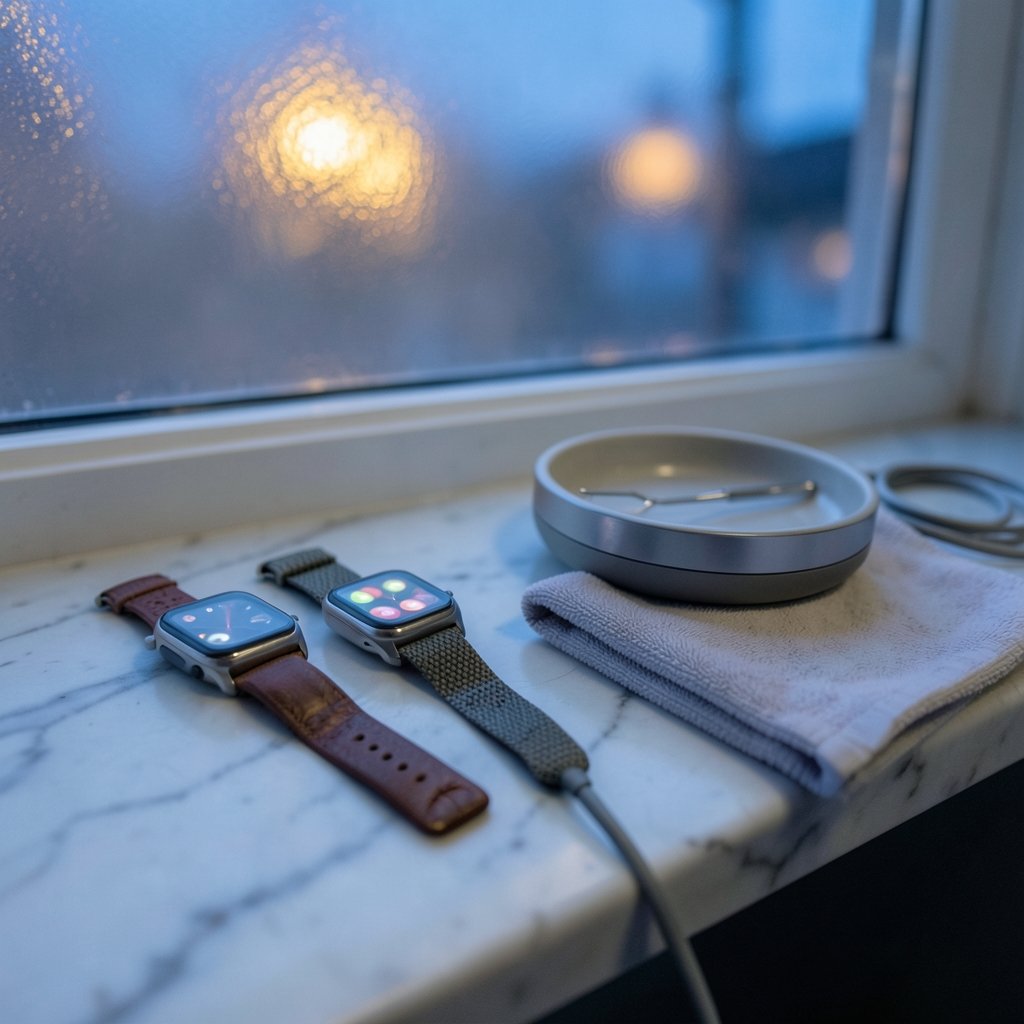
What if the most noticeable upgrade for your smartwatch costs less than a coffee and takes about thirty seconds to install? That’s the strange truth about watch faces. The hardware stays the same, but a well-chosen face changes how the watch reads on your wrist, how quickly you catch the time, and how much battery the screen burns in always-on mode. The catch is that the stores are flooded with thousands of options, most of them mediocre. This roundup cuts straight to the specific faces and face apps worth your time on Wear OS and Apple Watch, with the trade-offs spelled out so you can pick in minutes rather than scrolling for hours.
Quick comparison of the best smartwatch faces
| Face or app | Best for | Platform | Price tier | Main limitation |
|---|---|---|---|---|
| Heritage Classic | Dressy analog look | Samsung Galaxy Watch8 (built-in) | Free | Tied to Samsung hardware |
| Facer | Huge catalog, brand designs | Wear OS 6, Apple Watch | Free download, paid extras | Uneven quality across the catalog |
| WatchMaker | Tinkerers and custom builds | Wear OS | Free with premium options | Can overwhelm beginners |
| TIMEFLIK | Trend-driven, playful styles | Wear OS 6 | Free with premium faces | Style over data density |
| Pujie | Clean, data-rich dials | Wear OS 6 | Free with paid designs | Smaller catalog than Facer |
| Minimal by Luka | Unconventional minimalism | Wear OS (round watches) | Varies by listing | Not built for rectangular screens |
| Clockology | Dashboards and experiments | Apple Watch | Free and premium options | Setup takes patience |
| Buddywatch | Curated faces plus band matching | Apple Watch | Free and premium options | Weak discovery tools |
| N-SPORT dressy faces | Calm, jewelry-like elegance | Smartwatch face catalog | Varies by design | Deliberately limited data slots |
Heritage Classic: the safest dress watch face for Galaxy owners

If the goal is a watch that looks expensive at a dinner table, Heritage Classic is the obvious starting point for Samsung Galaxy Watch8 owners. It’s a free built-in face that recreates the look of a luxury timepiece with a textured analog dial and rich detail. It suits anyone who wants the watch to read as jewelry first and a gadget second.
What it does well is restraint. The analog layout is legible, the detailing holds up at a glance, and there’s no clutter fighting for attention. The limitation is simple: it only exists inside Samsung’s ecosystem, so Pixel Watch owners can’t touch it, and anyone who wants six complications on screen will find it too polite.
Facer: the biggest name in custom watch faces
Facer is the app most people meet first, and for good reason. It’s one of Google’s official Wear OS 6 partners, alongside WatchMaker and TIMEFLIK, and it brings a massive selection of faces to the Galaxy Watch 8 and Pixel Watch 4. It also runs on Apple Watch: the workflow is to install Facer on the iPhone, make sure the watch app is installed, pick a design, tap Send to watch, and finish adding it in Apple’s Watch app. One quirk worth knowing is that the imported face can appear blank or black in the iPhone Watch app until you close and reopen that app.
Who it suits: anyone who wants variety without hunting through the Play Store face by face. The limitation is quality control. A catalog this large is uneven, and premium or licensed designs cost extra on top of the free download. Treat the first install as a test drive, not a commitment.
WatchMaker: best for people who want to build their own
WatchMaker earns its spot as one of the official Wear OS 6 partners, and its appeal is control. Instead of picking from a shelf, you can dig into customization and shape a dial around exactly the information you care about. It suits the tinkerer who enjoys adjusting layouts, colors, and complications until the watch feels personal.
The honest limitation is the flip side of that power: beginners can drown in options. If you want a face chosen for you in thirty seconds, Facer or a built-in Samsung face will get you there faster. WatchMaker rewards the person who actually enjoys the process.
TIMEFLIK: playful designs with a trend-driven edge
TIMEFLIK rounds out the official Wear OS 6 trio, and it leans toward personality. It’s the pick for someone who wants their watch to look like it belongs to a particular aesthetic rather than a boardroom. The catalog skews toward stylish, contemporary designs, and it’s free to start with premium faces available.
The trade-off is density. Trend-forward faces tend to prioritize looks over the number of complications on screen, so if you want steps, heart rate, weather, and a calendar glance all at once, check a preview carefully before you commit. For a second watch face you rotate in on weekends, it’s a strong choice.
Pujie: clean, capable dials from another official partner
Pujie is the fourth name in Google’s Wear OS 6 partner lineup, and it’s the one to try when you want something polished and practical rather than flashy. It offers thousands of designs, and its strengths show up in well-organized hybrid layouts that keep the time readable while still carrying useful data.
Who it suits: the reader who wants a good-looking face that doesn’t sacrifice function. The limitation is scale. Pujie’s catalog is smaller than Facer’s, so if you’re chasing a very specific theme, you may come up empty. For everyday wear, though, a smaller, more consistent library is often the smarter buy.
Minimal by Luka: the best unconventional minimalist face
Most minimalist faces are just fewer hands on the same old dial. Minimal by Luka does something different: instead of relying entirely on a standard hour hand, it uses an hour indicator in the index, which gives the dial a distinctive character. It offers configurable colors, fonts, hand styles, complications, seconds, and always-on display options.
It suits minimalist users who want a design with a point of view. Two cautions are worth flagging. It’s designed for round watches and isn’t suitable for rectangular ones, which matters even when the software version looks compatible. And because listings emphasize Wear OS more than a model-by-model compatibility table, confirm support for your exact watch in Google Play before choosing it.
Clockology: the Apple Watch pick for dashboards and experiments
On the Apple Watch side, Clockology is the app for people who like to build, tweak, or import elaborate designs. Its listing describes an editor, shared user designs, video and sound layers, date and time elements, weather, activity, HealthKit data, steps, activity rings, and battery information. It’s a genuinely different category from a simple dial: part watch face, part interactive panel.
What it does well is depth. If you want a screen that behaves like a small dashboard, this is the toolkit. The limitation is effort. Setup takes patience, and the results vary with how much time you put in. It’s not the app to hand someone who just wants a nicer clock.
Buddywatch: curated faces with matching bands
Buddywatch takes a curated approach on Apple Watch. Discovery isn’t its strong suit, but there’s a trick: tap the search button at the top, then the filter button next to the search bar, and filter by your Apple Watch model and categories like Casual, Classy, Essential, Health, or Nightlife. When you tap a face, the app even suggests matching bands.
That band pairing is the real differentiator, and it makes Buddywatch the best fit for someone who treats the watch as part of an outfit. The limitation is browsing friction. If you don’t know the filter trick, the app feels like a locked room.
N-SPORT dressy faces: calm luxury without the clutter
For a strictly dressy feel, the N-SPORT luxury faces are built around restraint: muted colors, hands or digits that are easy to read, and one or two touches of motion that don’t shout. Gold on black is the classic example, and there’s a practical reason it works so well. Dark backgrounds make bright details stand out, and on OLED screens black pixels are off, so darker layouts cost less in always-on mode.
The design philosophy here is opinionated, and worth repeating: the more slots you fill, the less the face looks like jewelry and the more it looks like a dashboard. If you want a watch that reads as a dress piece, that’s a feature. If you want maximum data at a glance, look elsewhere.
How Wear OS 6 changed the watch face game
This context matters because it explains why some faces suddenly work again. After restricting old, battery-guzzling watch faces in Wear OS 5 with the Watch Face Format, Google worked with Facer and other apps on a solution called the Watch Face Push API. With Wear OS 6, each watch face app gets one slot in your watch’s favorites menu, visible by tapping and holding the display. Pick a face in the phone app, and it pushes onto that slot. Your watch’s storage isn’t cluttered with old faces because only the latest one lives there.
That design has one practical consequence people miss: switching faces now happens through the phone app, not by hoarding a dozen on the watch. It also means older Wear OS watches won’t get the update for some time, so check your model before shopping. If you like optimizing the tech you already own, the same instinct applies to picking a smart thermostat that actually saves energy and money rather than buying new hardware.
How to choose the right face for your wrist and habits
Start with the shape of your watch. Round faces on round watches look natural; a round-only design on a rectangular screen will look off no matter how good the artwork is. Then decide what the face is for. A dress face should stay quiet. A workout face should surface heart rate and timers. A workday face should show calendar and notifications without making you squint.
Next, think about battery. Dark layouts with fewer active pixels are gentler in always-on mode, which is why so many premium dress designs default to black. Finally, check the price model before you fall in love with a design. Many apps are free to download with premium faces behind a purchase, and licensed designs often cost extra. The same discipline that keeps a smart spending habit healthy applies here: know the free tier, and pay only for the face you’ll actually wear.
One more tip from practice: install one face at a time and live with it for a day. Faces that look stunning in a preview can feel busy by lunchtime, and the reverse is also true. And if you’re layering accessories, the same fit logic that makes a face shape frame guide useful applies to watches: proportion and shape matter more than the label.
Common mistakes that make a new watch face disappointing
The first mistake is choosing for the screenshot instead of the wrist. A face with tiny subdials photographs beautifully and becomes unreadable in sunlight. The second is ignoring the always-on display preview, which is how the watch looks most of the day. The third is stacking complications until the dial turns into a spreadsheet, which is exactly the clutter that dressy designs avoid.
The fourth mistake is assuming compatibility. Confirm your exact model in the store listing, especially for Wear OS faces that emphasize the platform more than a model-by-model table. The fifth is forgetting that some third-party faces need a phone-side step to appear, and a blank preview in the Apple Watch app is often just a refresh issue rather than a broken install.
Conclusion
The best smartwatch face isn’t the most elaborate one. It’s the one that matches your watch’s shape, your daily information needs, and your tolerance for setup. Samsung owners can start free with Heritage Classic. Wear OS 6 users have four official routes: Facer for sheer volume, WatchMaker for control, TIMEFLIK for personality, and Pujie for polish. Apple Watch owners should look at Clockology for dashboards and Buddywatch for curated style. Pick one, wear it for a day, and let your wrist decide.
Frequently asked questions
What are the best smartwatch faces overall?
There’s no single winner, but the strongest starting points are Heritage Classic on Samsung Galaxy Watch8, Facer for catalog size on Wear OS 6 and Apple Watch, and Clockology for Apple Watch dashboards. The right pick depends on your watch shape and how much data you want on screen.
Do custom watch faces work on Wear OS 6?
Yes. Wear OS 6 reintroduced custom watch faces, with Facer, WatchMaker, TIMEFLIK, and Pujie as official partners. Each app gets one slot in your watch’s favorites menu, and you push a chosen face from the phone app. Older Wear OS watches won’t get the update for some time.
Are custom watch faces bad for battery life?
They can be, which is why Google restricted old, battery-guzzling faces in Wear OS 5 with the Watch Face Format before building the Watch Face Push API for Wear OS 6. Dark layouts help on OLED screens because black pixels are off, so they cost less in always-on mode.
Why does my Facer face show up blank on Apple Watch?
This is a known quirk. The imported face can appear blank or black in the iPhone Watch app until you close and reopen that app. The install itself is usually fine, so refresh before assuming something failed.
Are free watch faces good enough?
Often, yes. Heritage Classic is free and built in, and most face apps are free to download with premium designs behind a purchase. Start with the free tier, wear one face for a day, and upgrade only when a specific design earns it.
How do I find good faces in an app with a huge catalog?
Filter first. In Buddywatch, tap search, then the filter button, and narrow by your Apple Watch model and categories like Casual, Classy, or Health. On Wear OS, check the preview’s always-on view and confirm your exact model in the listing before installing.