
What if the laptop you buy this month decides whether your next export takes four minutes or forty? That gap is real, and it rarely comes down to the brand name on the lid. It comes down to a handful of parts working together: the chip, the graphics card, the drive, the screen, and the cooling that keeps all of them from throttling halfway through a render.
Most buying advice for video editing laptops drowns people in spec sheets. This guide takes a different route. It explains what actually moves the needle in Premiere Pro, DaVinci Resolve, and Final Cut Pro, where shoppers overspend, and how to match a machine to the footage you really cut rather than the footage you imagine editing someday.
Why the “best” editing laptop depends on your footage
There is no universal winner, and anyone who claims otherwise is selling something. A laptop that flies through 1080p wedding edits on a tight budget may struggle with 8K RAW from a cinema camera. A machine tuned for Final Cut Pro on Apple silicon behaves differently from a Windows machine tuned for Resolve.
The honest starting point is your source material. Ask three questions before comparing a single model:
- What resolution and codec do you shoot? H.264 from a phone is a very different load from 10-bit log footage or ProRes.
- How long are your timelines? A two-minute social clip and a 90-minute documentary stress storage and thermals differently.
- Where does the footage live? Internal drive, external SSD, or a mix?
Answer those, and the shopping list narrows fast. Skip them, and you end up paying for headroom you will never touch.
The parts that actually matter for editing
The processor and its media engine
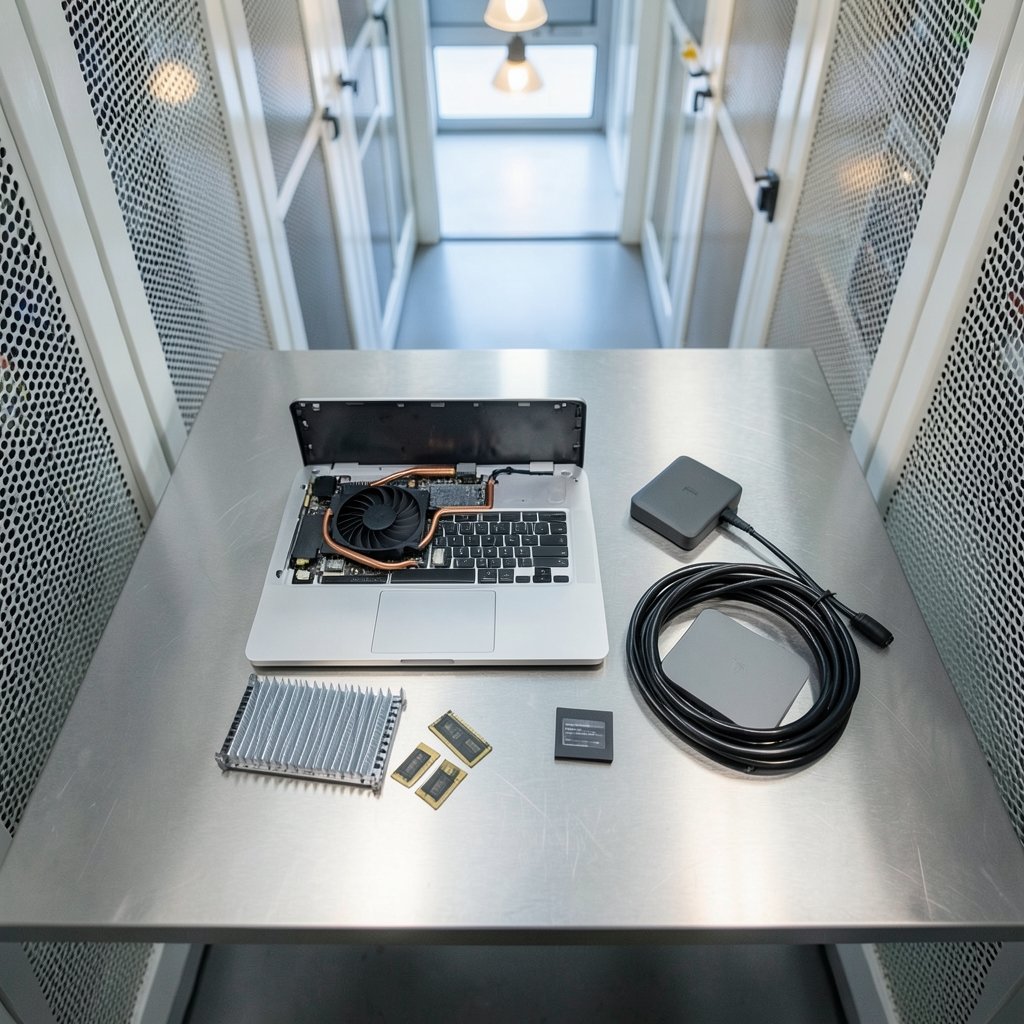
Raw core counts get all the attention, but modern chips include dedicated media engines for video encoding and playback. Those engines can speed up timeline scrubbing and export far more than an extra pair of general-purpose cores.
Apple’s M-series chips are the clearest example. Apple announced the M1 on November 10, 2020, and the first M1 MacBook Pro and Air shipped that November. Apple’s performance claims are marketing figures, not independent benchmarks, so treat them as a starting point rather than proof. The architecture matters: dedicated encoding and playback hardware for formats like H.264, HEVC, and ProRes can change how a timeline responds under your fingers. The exact codec support varies by chip tier, so confirm it per model rather than assuming.
On the Windows side, Intel moved to a hybrid design with performance cores and efficiency cores in its 12th-generation mobile processors, announced at CES in January 2022. How well that split works depends heavily on the editing app and its version. AMD’s Ryzen 6000 and 7000 mobile chips added integrated RDNA2 and RDNA3 graphics, which improved hardware playback and GPU-accelerated effects on laptops without a discrete GPU. Those launches were announced at CES in January 2022 and January 2023 respectively.
The GPU and its drivers
For most editors, the graphics card matters most for effects, color work, and noise reduction. NVIDIA has published Studio Drivers since 2019, tested against apps such as Premiere Pro and DaVinci Resolve. That is a driver-certification program, not a promise of laptop performance, but it does mean fewer surprise crashes than generic drivers sometimes deliver.
A practical rule: match the GPU to your software’s recommendation, not to the biggest number on the box. Adobe publishes official system requirements for Premiere Pro covering minimum and recommended RAM, GPU memory, and storage. Blackmagic Design publishes DaVinci Resolve system requirements and a configuration guide for Windows, macOS, and Linux with GPU recommendations. Those documents are the most reliable baseline for “will this laptop run it,” and they change with each release, so check the current version.
RAM, storage, and the drive speed trap
Editing software is hungry, but the bigger mistake is buying a fast machine with a slow or tiny drive. External SSD speed and multi-monitor support depend on the interface, and Thunderbolt 3 was donated to the USB Promoter Group and became part of the USB4 specification, announced March 4, 2019. In practice, that means a USB4 or Thunderbolt port is what lets you edit from fast external storage without turning your timeline into a slideshow.
If you have ever wondered why a perfectly good cable produces a mushy image on a second screen, the answer is often signal conversion rather than the laptop itself. The same logic applies to editing setups: the chain is only as strong as its weakest link, whether that link is a port, a cable, or an adapter. Understanding how VGA to HDMI analog video becomes a digital signal helps when you are wiring an older monitor into a modern editing desk.
The display: a standard, not a slogan
Color accuracy is defined by standards, not marketing copy. For color-critical editing, look for coverage of sRGB and Rec.709, and for HDR work, DCI-P3. Rec.709 is defined by the ITU, and sRGB is defined by the International Electrotechnical Commission under IEC 61966-2-1. A laptop that covers Rec.709 well will show you roughly what your audience sees on a normal screen. One that does not will have you grading to a lie.
Brightness matters too. A panel that tops out dim will fight you in a bright room, and no amount of calibration fixes a screen that cannot get bright enough to judge highlights.
A comparison framework that beats spec-sheet shopping
Instead of ranking models that will be replaced within months, use a framework. The table below maps common editing situations to the hardware priorities that matter most.
| Editing situation | Priority one | Priority two | Where to save money |
|---|---|---|---|
| Phone and action-cam clips, short social edits | Media engine and fast SSD | Good battery life | Discrete GPU tier |
| 1080p and light 4K client work | Balanced CPU and GPU | Color-accurate display | Top-tier chip |
| 4K log footage, color grading | GPU memory and Studio-certified drivers | Rec.709 coverage | Extreme core counts |
| Heavy effects, noise reduction, long timelines | Cooling and sustained performance | RAM headroom | Thin-and-light chassis |
| Multicam and proxy workflows | Fast external ports (USB4/Thunderbolt) | Storage speed | Onboard storage size |
That last row deserves emphasis. Many editors buy a machine with a huge internal drive and then edit from a slow external one anyway. Ports and drive speed beat raw capacity more often than people expect.
Practical tips that separate a smooth workflow from a frustrating one
These are the habits and checks that experienced editors rely on, and the mistakes that catch first-time buyers.
Check sustained performance, not peak performance. Thin laptops often hit impressive numbers for thirty seconds and then throttle. Look for reviews that test long exports rather than short benchmark runs.
Do not trust cross-brand battery claims. Manufacturers test with different workloads and brightness settings, so battery life figures are not comparable across vendors. Independent testing is more reliable. No single standard governs laptop battery claims, which is exactly why the numbers on the box deserve skepticism.
Buy for the software you use today. Premiere Pro, DaVinci Resolve, and Final Cut Pro have different GPU and CPU profiles. A laptop that excels in one may lag in another. If you plan to switch editors later, leave headroom, but do not pay extra for an app you have not installed.
Prefer independent benchmarks over vendor slides. Apple, Intel, AMD, and NVIDIA all publish comparisons that favor their own products. Application-specific benchmark data from independent testers is worth more than any launch-day chart.
Plan your storage before you plan your purchase. A fast machine with a full drive is a slow machine. Budget for an external SSD and the right cable alongside the laptop.
Watch the screen before the spec sheet. A slightly slower chip with an accurate panel beats a faster chip with a washed-out display for anyone who grades footage. If you notice odd banding or flickering while editing, the cause is sometimes the panel rather than the software, and a guide to vertical or horizontal lines on a laptop screen and their causes and fixes can save you a needless return.
Do not overlook refurbished and previous-generation models. Last year’s high-end chip often beats this year’s mid-range one, and the savings can fund the external drive you actually need.
Test your own footage on a store demo if you can. Bring a clip on a USB stick. Real footage tells you more in two minutes than an hour of reading spec sheets.
Common mistakes that cost editors real money
The first is buying the thinnest laptop available and then wondering why exports crawl. Thin chassis have less cooling headroom, and sustained performance is what editing demands.
The second is overspending on the processor while underspending on the display. A color-inaccurate screen will cost you client revisions, and revisions cost more than the upgrade would have.
The third is ignoring the media engine question entirely. On Apple silicon, the chip tier determines which codecs get hardware acceleration, and that difference shows up in scrubbing and export times. On Windows, integrated graphics in newer Ryzen chips can handle playback and some accelerated effects even without a discrete GPU. Knowing which path your software prefers prevents an expensive mismatch.
The fourth is assuming more RAM always helps. It helps until the GPU or the drive becomes the bottleneck, and then it just sits there. Balance matters more than any single number.
The fifth is forgetting the accessories budget. Cables, adapters, external drives, and a decent card reader add up. A laptop that fits the budget but leaves nothing for storage is not actually a bargain. The same principle applies to bundle deals in general: it pays to check what a package really contains, whether that is a laptop-and-drive combo or something like the Strayer University HP laptop bundle and what it really includes, before assuming the extras are worth it.
Finally, there is the question of tools rather than hardware. Storage fills up faster than anyone predicts, and knowing how compression actually behaves in practice helps you plan exports and archives. A look at the best free video compressors that actually work in practice is a useful companion to any laptop decision, because file size and codec choice shape how much machine you need in the first place.
How to decide in one afternoon
Set a budget, then work backward. List the codecs and resolutions you edit most. Check the official system requirements for your editor of choice. Confirm the laptop’s media engine supports those codecs. Verify the display covers Rec.709. Confirm at least one fast external port. Then read independent reviews that test sustained performance, not launch-day benchmarks.
If two machines survive that process, pick the one with the better screen and the better cooling. Those are the parts you cannot upgrade later.
Conclusion
The best laptop for video editing is not the one with the longest spec sheet. It is the one whose media engine, GPU, drive, ports, and display line up with the footage you actually cut. Apple silicon reset expectations in November 2020, Intel’s hybrid design arrived in early 2022, and AMD’s integrated graphics have steadily improved playback and accelerated effects on machines without discrete GPUs. None of that settles the question for you, because the answer depends on your codecs, your software, and your budget.
Do the homework once, verify requirements against the current versions of your editing app, and resist the urge to buy headroom you will never use. A balanced machine with accurate color and honest cooling will outlast a flashier one that throttles the moment the timeline gets real.
Frequently asked questions
How much RAM do I need for video editing on a laptop?
Check your editor’s official requirements first, since they change with each release. As a working rule, 16GB is a reasonable floor for 1080p and light 4K work, while 32GB gives comfortable headroom for heavier timelines, effects, and multitasking. Beyond that, the GPU and drive often become the bottleneck before RAM does.
Is a MacBook or a Windows laptop better for video editing?
Neither wins outright. Apple silicon’s dedicated media engines make scrubbing and export feel fast in Final Cut Pro and well-optimized apps, while Windows laptops offer more hardware variety, upgrade options, and discrete GPU choices for Resolve and Premiere Pro. Match the platform to your editor and your existing storage and monitor setup.
Do I need a discrete graphics card to edit video?
Not always. Newer integrated graphics, including AMD’s RDNA2 and RDNA3 implementations in Ryzen 6000 and 7000 mobile chips, handle hardware playback and some accelerated effects well. A discrete GPU becomes important for heavy effects, noise reduction, color work, and high-resolution footage. Check your software’s GPU recommendations before deciding.
Does screen color accuracy really matter for editing?
Yes, especially if you grade footage. Look for solid sRGB and Rec.709 coverage, and DCI-P3 if you work in HDR. Rec.709 is defined by the ITU and sRGB by the IEC, so these are standards you can check rather than marketing claims. An inaccurate screen leads to grades that look wrong on everyone else’s display.
How important are ports and external storage?
Very. Fast external storage keeps large projects off your internal drive, and USB4 or Thunderbolt connections make that practical. Thunderbolt 3 became part of the USB4 specification announced in March 2019, so a modern USB4 port is a strong sign the machine can handle external SSDs and multiple monitors without drama.
Should I wait for a newer model or buy last generation?
Last generation is often the smarter buy. Previous-generation high-end chips frequently outperform current mid-range ones, and the savings can pay for the external SSD and accessories you will need anyway. Buy when your current machine blocks your work, not when a launch event says so.